Archive for category IT Tips

SQL Server 2008 R2 Report Builder 3.0 (RTM)

image By far, the most popular posting on this site is Visual Studio 2008 & Business Intelligence Development Studio (Troubleshooting).  The post currently has over 60 comments.  It seems that here’s a lot of confusion about ways in which developers and report designers can get the tools they need to create and manage SQL Server Reporting Services (SSRS) reports.  If you’re trying to work with the Business Intelligence Development Studio (BIDS) with SQL Server 2005 or SQL Server 2008, or you’re planning to use Report Builder 2.0, that post should point you in the right direction.

So now that SQL Server 2008 R2 has been released, what’s the story for report development?  Fortunately, it’s not quite as confusing.  The primary tool you’ll use for developing reports is Microsoft SQL Server 2008 R2 Report Builder 3.0.  You can download it manually using the link to the Microsoft Download site, or you can install it using ClickOnce by loading your Reporting Services web site (e.g., http://localhost/Reports).  The download is also available as part of the Microsoft SQL Server 2008 R2 Feature Pack (along with a wide variety of other tools and utilities).  Report Builder 3.0 supports the creation of reports for both SQL Server 2008 and the R2 version.

If you’re moving to (or testing) the RTM version of SQL Server 2008 R2, Report Builder 3.0 is likely the best way to get acquainted with the new features of this release.  And, thankfully, the migration process should be much simpler than it was for previous versions of SSRS.  A great resource for more information is the MSDN SQL Server 2008 R2 Reporting Services Forum.  Or, if you have any questions, feel free to post them here.

Microsoft Thrive: IT Pro of the Month!

It’s no secret that IT professionals and their organizations have been significantly affected by the downturn in the economy.  Those of us that have been through the so-called “dot-com” days can see how much things can change within a few years.  Fortunately, at least some companies are developing resources to help IT professionals weather the downturn.  I’d go a bit further in saying that these otherwise dismal times can provide significant opportunities for those that are willing to invest in their skills and their profession.

MicrosoftThriveThe Microsoft Thrive web site is a free resource that is designed to help IT professionals in a variety of ways.  For example, the site includes the following goals and areas:

  • Advance Your Career
  • Enhance Your Technical Skills
  • Align IT with Business

Some of the content is Microsoft-focused, but much of it applies to just about any area of IT specialization.

I’m honored to say that I’ve been chosen as the Thrive IT Pro of the Month (see Thrive IT Pro of the Month: Anil Desai)!  I recorded a brief (~9 minutes long) presentation that covers, among other things, some recommendations for IT pros to get ahead, how IT pros can demonstrate their value, details on technology-focused topics and even a mention of the importance of hobbies.

The entire audio presentation is available from download using the previous link.  Here’s an excerpt from the written transcript:

As an independent consultant, I’m fairly diversified in the area of IT. I’m also used to the ups and downs in the IT industry, starting from the dot-com days in the late 1990′s to today. I use a variety of different specializations to fill in the inevitable downtime between projects. So, I’m fairly fortunate in that I’ve been able to maintain my business through the recent crunch.

However, the downturn in the economy has certainly had an impact on my clients, especially in the area of prioritization. Many organizations have focused on cost-cutting and many organizations have removed or scaled-back many of their non-essential projects. Those changes can sometimes translate into lay-offs, increased work for remaining staff, and short-term changes at the expense of long-term gains.

All of this provides some serious challenges (as well as some opportunities) for IT professionals. One change is that it really puts the emphasis on IT professionals’ ability to work as a strategic part of their businesses. I’ve heard it said that people know when IT departments are doing their jobs when they don’t know that IT departments are doing their jobs. The idea here is that IT is traditionally seen as a behind-the-scenes force (or sometimes just as a cost center). Business leaders might feel that IT provides little strategic value to the overall business.

Tough economic environments bring this issue to the forefront: IT professionals must understand overall business goals and must be able to apply the right technical solutions to solve business problems. And, they need to demonstrate their value within and outside of their IT groups. For those IT pros that have been able to focus on just the technical aspects of their skillset, this is a good time to branch out into the rest of the business world.

Feel free to e-mail me if you’d like the entire transcript.  And please post here if you have any questions, comments, or recommendations for your IT peers.

Connection errors when migrating from Visual SourceSafe (VSS) to Team Foundation Server (TFS) using VSSConverter (Error TF31002)

image If you haven’t yet heard, the Release Candidate (RC) version of Visual Studio 2010 is now available to MSDN Subscribers.  Personally, I was waiting for this release to move my primary development environment over to the new version.  Overall, the installation and setup process was easy enough on two of my development machines.  The biggest problems I ran into were related to migrating my dozen or so development projects from Visual SourceSafe to Team Foundation Server.  I know I’m a bit behind the curve, but I’m an independent developer, and I was actually happy enough with VSS.

Using VSSConverter

The VSSConverter.exe utility is Microsoft’s command-line tool for migrating Visual SourceSafe repositories to Team Foundation Server.  The utility includes analyze and migrate modes and is driven by XML-based configuration files.  The process was simple enough and is documented in the following MSDN articles:

Migration Errors

The basic process went well until I got to the step of actually performing the migration.  That’s when I encountered the following dreaded TF31002 error:

image

I checked my server name, port, and other settings numerous times but still couldn’t get it to work.  Web searches provided some basic troubleshooting information, but nothing relevant to my issue.  All diagnostics that I ran (including the Best Practices Analyzer from the Team Foundation Server Power Tools) reported that everything was OK.

The Solution…

I finally stumbled upon the solution in an old bug reported via Microsoft Connect.  The defect report is titled VSSConverter cannot connect to the Team Foundation Server and offers the following problem description and solution:

When trying to migrate a Source Safe database to TFS2010 the VSSConverter tool exits with the following error:
TF60070: Unable to connect to the Team Foundation Server: ‘http://ts01:8080/’. Please ensure that the Team Foundation Server exists and try again.
The Team Foundation Server exists but at http://ts01:8080/tfs (default installation) The VSSConverter tool is unable to access this location.

UPDATE!
There is a new configuration option in the TeamFoundationServer element to specify the collection to which the sourcesafe database should be merged. It’s nowhere to be found in the documentation yet.
The solution is to add collection="tfs/DefaultCollection" to the TeamFoundationServer to specify which collection should be used.

After adding the “collection=” attribute, the migration worked flawlessly.  It took about an hour to transfer all of my code and versions, but everything looks good now.  The migration process could be simpler, but (if I’m lucky), I’ll only have to do this once.  I hope this helps some of you that might have run into the same problem.

Microsoft Office Labs’ Ribbon Hero

Perhaps one of the most challenging issues with complex applications is in teaching users to take advantage of their many features.  Modern software like the Microsoft Office suite provide an overwhelming number of options and features that can be used to make work easier.  However, the most requested “new” features that are received by the Microsoft Office development team are already in the product.  Yes, they’ve likely been there for a long time, but users just haven’t found them.

In many of the apps I’ve written, users are often unaware of keyboard shortcuts, simpler ways to move between fields in web/Windows forms, and efficient methods for entering data.  I often cringe when I see people spend hours trying to manually perform tasks that are easily automated using application features.  Still, many application users will go to great lengths to avoid having to learn anything new (even if it will pay off in the long run).  But what about those who actually want to learn how to best use specific pieces of software?

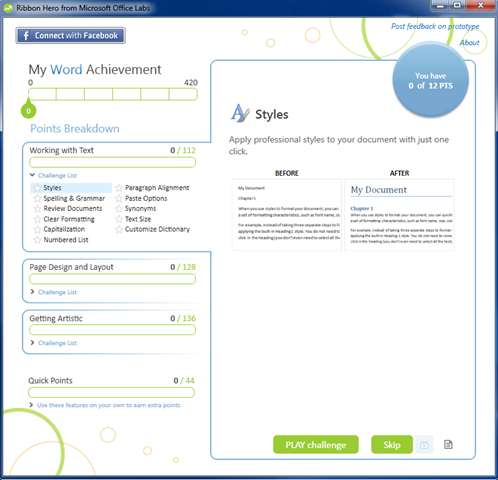
Enter The Microsoft Office Labs Ribbon Hero.  Here’s a brief description of how it works:

Ribbon Hero is a game for Word, PowerPoint, and Excel 2007 and 2010, designed to help you boost your Office skills and knowledge. Play games (aka "challenges"), score points, and compete with your friends while improving your productivity with Office.  As a concept test, this add-in is not supported, but is an opportunity for you to try out an idea we are working on and let us know what you think.  For additional challenges and the opportunity to earn more points, download Office 2010 Beta.

The idea is somewhat unconventional, but this demo video provides a great example of how you can use it to make yourself a better Microsoft Office user.

While learning is often its own reward, the game also allows you to automatically share and compare your score with others using Facebook.  Here’s a screenshot from within Microsoft Word.

image

Of course it’s unsupported code.  So, don’t plan to open up a Severity 1 case with Microsoft Product Support Services if you think you didn’t get all the points you deserve. :)

Overall, I think the Ribbon Hero project is a fun and useful way to stretch users’ abilities with one of the world’s most popular productivity suites.  I’m planning to rack up a pretty high score.  Who’s up the challenge?

Windows Server 2008 R2 Poster

IT people tend to be known for a lot of things (both good and bad), but the classic geeky poster seems to be a mainstay for most technical professionals.  Among block diagrams, Dilbert comics that take thinly-veiled shots at clueless management, and software architecture posters, it seems like there’s something for everyone. 

Of course, posters can actually be informational and useful.  Microsoft has recently made a Windows Server 2008 R2 Feature Components Poster available for free download.  While it would be difficult to print this out (it’s roughly 44” x 24” in full size), it provides a really clear, concise overview of the new features in Windows Server 2008 R2.  The list of sections includes:

  • Active Directory Domain Services
  • Hyper-V
  • File Services
  • Remote Desktop Services
  • BranchCache
  • DirectAccess

The content helps illustrate that the R2 release isn’t just a minor upgrade – there’s probably a lot more in here than most administrators are aware of.

You’ll also find a sidebar of acronyms and plenty of useful notes and tips.  While it’s no replacement for complete documentation, I think these posters do a great job of providing a lot of information in a limited space. 

Can your computer run Windows 7?

With the official consumer release of Windows 7 just a few days away, a lot of people are probably wondering whether their computers will be able to run Microsoft’s newest OS.  Potential issues include device drivers, hardware, software, and user settings.  The free Windows 7 Upgrade Advisor Beta can help you answer these questions quickly an easily.  The process couldn’t be much easier: Just install and run the Upgrade Advisor (it runs on Windows XP, Windows Vista, and Windows 7).  The utility will take a few minutes to run and will then return a report like the one below (assuming you’re running a fairly current desktop or notebook computer).

image

You can also view a list of system requirements and your current specifications:

image

For the most part, users shouldn’t have much trouble when upgrading to Windows 7.  The magnitude of under-the-hood architectural changes is much less than it was during the leap from Windows XP to Windows Vista.  And, third-party hardware and software vendors have finally caught up (for the most part) and are providing reliable drivers.

From my experience, Windows 7 seems to run about as fast as Windows XP (which means it’s much faster than Windows Vista).  I have upgraded numerous desktops and notebooks to Windows 7 without any problems that I couldn’t quickly and easily resolve.  I think it will be a worthy upgrade for most users, and the Upgrade Advisor should be able to provide some warnings related to potential problems before you take the plunge.

Home Theater Power Consumption

I’ve always been curious about power consumption ever since the days before it was fashionable to think about this stuff.  The poor, lonely, unemployed, set of servers in the data center used to bother me.  Sure, they kept to themselves and rarely bothered anyone.  But, no one had the guts to fire them, and they continued to generate heat, suck down power, and take up space (who hasn’t felt that way at some point?). 

Of course, power frugality should start in the home.  When looking into getting a new TV, I noticed that actual power consumption statistics were really hard to come by.  Wattage ratings sometimes give a partial picture, but they’re far from real-world usage stats.  So, taking the problem into my own hands (literally), I used a handy power consumption meter to measure how much juice each of these devices used.  Below are details of my “test environment”.  The information is just for one configuration of devices and is completely anecdotal.  Still, I hope the information will be useful in some way and will inspire others to do the same types of tests.

The Test Environment

My current home theater setup is somewhat outdated (would-be thieves, please take note).  It includes the following:

  • A Microsoft Xbox 360: This is one of second generation units with a 120GB hard drive upgrade, obtained after a warranty replacement.  It has been running without problems for several years now.
  • Samsung LN52A630 TV: It’s a 52” LCD display; 120Hz refresh rate.
  • ReplayTV 5500 Series DVR: A standard-definition hard driver-based DVR.
  • Onkyo TX-SR507 Receiver: It’s in a standard 5.1 configuration.
  • Yamaha NS-A1738 Speakers: These are single-amped and hooked up to the received.  I also have a Polk center channel speaker and some small Polk Audio rear channels (yes, it’s a Frankenstein setup).

Power Consumption:The Results

The below tables provide details on instantaneous power consumption (in Watts) of each component in the setup.  I have tried to show the various modes, settings, and operations of the different devices.

LCD TV Power Consumption

Below are the results for various modes of my Samsung LCD TV.  The X360 uses component video cables, and the TV’s speakers are powered off (unless otherwise noted).

Mode / Configuration

Power (Watts)

Off

0

TV (Snow)

176

TV (Snow w/Menu)

226

Channel Search (Black Screen)

126

Digital TV

235

X360 (Dim)

112

X360 (On)

236

1080P Movie

236

Entertainment Mode: Sports

307

Entertainment Mode: Cinema

190

Entertainment Mode: Game

223

Dynamic Mode

303

Movie Mode

186

Energy Saving (Off)

228

Energy Saving (Low)

177

Energy Saving (Medium)

143

Energy Saving (High)

116

Energy Saving (Auto)

233

AutoMotion (Off)

227

AutoMotion (Low)

227

AutoMotion (Medium)

227

AutoMotion (High)

227


Xbox 360

Below is X360 power usage, based on various operations.

Mode / Configuration

Power (Watts)

Xbox360 (Dashboard)

248

Xbox360 (1080p movie)

243

Xbox360 (Halo Wars)

240

Xbox360 (Halo 3 – Disc)

265


Replay TV Power Consumption

As a note, the device never spins down the hard drive – it’s always running as long as the unit is plugged in.

Mode / Configuration

Power (Watts)

ReplayTV

47

ReplayTV + Receiver

97

ReplayTV + Receiver (No Audio)

50


Do It Yourself

Power usage meters such as the Kill-a-Watt are readily available and fairly inexpensive ($20 at NewEgg, at the time of this writing).  The general process is to simply place the meter between a plug and a wall socket.  Most of these meters will allow you to enter your cost-per-kWh rates to get estimates on daily, weekly, and annual costs. 

Summary

Hopefully this information is somewhat interesting to readers of this blog.  The fact remains that, at least in the United States, electricity costs are still far lower than they should be (based on the global impact of our consumption).  That makes this information academic, for the most part – it’s unlikely to result in significant costs savings.  Still, I somehow feel better with knowing how much power I’m burning when I’m being thoroughly destroyed in Halo online matches.

I’m also interested in seeing some other results, so please post them if you’ve got them!

Windows 7 UI Enhancements for Power Users

While there are benefits to being a highly technical “power user”, it can also come as a drawback in certain situations.  No, I’m not talking about being the de facto “Tech Support Provider” for friends and family…  It seems that many O/S’s are designed for the “lowest common denominator” user, and we techies are left with having to install hacks, reconfigure default settings, and to search for third-party utilities that fill in the gaps.  Products such as Mac OS X (with it’s one default mouse button and many missing keyboard conveniences) might work well for basic tasks, it leaves a lot to be desired.  I was disappointed that Windows Vista’s “new” desktop didn’t provide much in the way of productivity-enhancing features. 

Well, Windows 7 is about to hit the stage, and it looks like a winner from a usability standpoint.  A simple web search will return dozens of articles that look at many of the UI changes and improvements and blogs like Engineering Windows 7 go into some of the decision decisions in significant depth.  Rather than repeat the content of those articles, I’ll briefly highlight the features I’ve enjoyed most during my past few months with Windows 7:

  • The new taskbar: There are also some features that might not be readily evident.  For example:
    • You can see icons for all of your most-used programs, whether they’re running or not.  They’re always right where you expect them, which really saves time when you have a bunch of different programs open at the same time.
    • Applications can support jump lists, recent documents, and other special features that are available by hovering over an application icon or right-clicking on it.  Apps such as IE already support this quite well.
    • You can easily dock the Taskbar to the left, right, top, or bottom of the window.  In fact, this even works properly with multiple monitors.  So far, I have stuck with the standard bottom-of-screen layout, but I have tried docking it to the left, and it works well.
    • Windows7Taskbar

  • Improved multi-monitor support:  Windows 7 makes it much easier to work with multiple monitors but allowing you to quickly drag windows (even when they’re maximized) to other monitors.  In fact, my eVGA USB-to-DVI adapter is working great on Windows 7 (though I did need to download and and install the beta drivers manually).
  • Keyboard Shortcuts for Window Management: Using intuitive keyboard shortcuts is far more effective and efficient than using the mouse to arrange windows.  For example, think of all the work it typically takes to view two windows side-by-side (I never bothered to try it manually and relied on third-party utilities like DisplayFusion to help).  Using the Windows Key in conjunction with the arrow keys allow you to maximize, minimize, and move windows to any part of any monitor.  This alone saves a lot of time and really takes advantage of my three-monitor setup.  Finally, you can use Windows Key – # to open the appropriate program or folder on your computer based on its located on the taskbar. 
  • Overall Stability:  As I’ve mentioned in previous posts, I had been quite disappointed with Windows Vista’s performance and reliability (even after applying both service packs).  On the whole, Windows 7 responds much more quickly and the desktop, UI, and applications are completely reliable.  In fact, I typically reboot my computer (which runs a ton of development stuff) once a week or so.
  • New wallpapers and desktop themes: Sometimes, it’s the little(r) things that count the most.  Windows 7 ships with a great collection of default themes and backgrounds.  And, you can also download many more from the Windows 7 Personalize Your PC site.  The download process is seamless and I hope Microsoft will continue to add content frequently (as opposed to the rather missed opportunity with Windows Vista Ultimate Extras).  Furthermore, the UI improvements for switching between desktop settings has been streamlined, making it simple to make changes without third-party utilities.
  • Sidebar Gadgets: They can now be placed anywhere on the desktop and seem to use fewer system resources (just a subjective observation – I haven’t done any testing).  Unfortunately, there’s still a relative dearth of useful gadgets, but hopefully that will finally change.
  • Expanded right-click menu:  Hold SHIFT and right-click on a file or folder to see some useful new options, such as “Open Command Window Here”.  You could enable this feature in XP/Vista, but it required a Registry change and would always appear in an already long list of options.
  • ClearType and Color Tuner: Matching colors on multiple monitors has always been a pain.  While drivers from Nvidia and ATI allow you to change RGB values, these settings never seemed to “stick” for me.  Windows 7 includes built-in functionality for handling this, and it seems to work.  Better yet, it efficiently supports a multi-monitor setup.

ColorTuner

Overall, I think Microsoft has done a great  job of balancing usability for less-technical users with the features that those of the geekier persuasions can appreciate.  I have (against some practical warnings and advice) switched to using the Windows 7 Release Candidate as my primary O/S.  I’ve run into very few problems so far.  So… which useful features have I missed?

The [Solid] State of Hard Disks

A Brief History of [Wasted] Time

Over the last couple of decades, practical PC bottlenecks have moved.  I remember a time when upgrading CPUs could provide a near-linear speed increase with respect to clock speed (does anyone remember the thrill of going from a 33MHz 486 processor to a a 486/66?).  Later, keeping the processor fed became more important.  Improved memory bus speeds, lower cache latency, larger cache sizes, and more RAM often provided the best performance increase.  And of course, we had network issues – starting with dial-up performance.  Thankfully, most of those resources are no longer the slowest components in modern PCs.  In fact, CPUs have increased in performance to the point that clock speed increases give little practical benefits for most users (on the client side, at least).

Wringing some[Bottle]necks…

Over the last several years, the primary bottleneck on most of my machines (notebooks, development desktops, and music production machines) has been hard disk performance.  If I was waiting for something, it was more than likely that hard drive.  The high number and frequency of random I/Os often resulted in significant delays.  Even with large amounts of RAM, launching programs, loading web pages, and performing builds in Visual Studio could take a lot of time.  High-speed, low-latency hard disks helped a little.  And, if you can stomach the risk of data loss, RAID-0 configurations could alleviate some of the pain.  But, disk access remained the slow step in many processes.

One of my clients, TechTurn, was kind enough to lend me a Samsung 128GB Solid State Disk (SSD) to test.  At first, I imaged my notebook Windows 7 Release Candidate installation and placed it on the SSD.  I was expecting an incremental increase in performance (at least for random, small reads).  The overall results, however, were amazing!  Applications launched in a just a few seconds, and some basic benchmarks provided all the evidence I needed to place the new disk in my primary development machine (a Dell Dimension XPS 420 with two 500GB, 7200RPM drives).  Now, after just a couple of weeks, I can’t imagine going back to “old school” physical drives.

SSD’s are new to the marketplace and they’re not without significant potential drawbacks.  In the coming weeks, I’ll provide some more details on the experience.  For now, here are a couple of basic benchmarks created using HDTune.  The basic comparison is between a Samsung 500GB, 7200 RPM hard disk (16MB cache) and the 128GB Samsung SSD.  I did absolutely nothing to optimize the performance of the SSD, so consider this just a baseline.

Benchmarks

HDTune – Disk Benchmarks

image

Figure 1a: HDD Performance (Dell XPS 420)

image

Figure 1b:  SSD Performance (Dell XPS 420)

HDTune – Random Access Performance

image

Figure 2a: HDD Performance (Dell XPS 420)

image

Figure 2b: SSD Performance (Dell XPS 420)

I realize that this data is completely anecdotal and unscientific, but it’s a promising start.  So far, the general performance improvement from using an SSD has been the single most noticeable upgrade in several years.

More to come…

Again, I hope to post some more detailed data (with a focus on benefits for development workstations) in the coming weeks.  Now if only my own sequential writing speed could match that of the SSD drive… :)

Update: The Engineering Windows 7 blog has a post that covers Support and Q & A for Solid-State Drives.  It helps provide some technical background related to the different between random vs. sequential I/O’s and issues related to random writing.

Network Design in an Uncertain Economy

It’s no secret that IT budgets worldwide have been slashed and that spending on new projects has been drastically reduced for most companies.  However, contrary to popular opinion, there’s a lot of opportunity to make cost-saving investments now.  On that topic, I will be presenting some best practices in a webcast titled Building a Recession-Proof Network (sponsored by Nortel).  From the webcast web site:

In today’s economy, ensuring you have a network that is reliable and secure 24×7 can help you to recession-proof your business even with a limited IT budget. Learn step-by-step about how your company can build a cost-effective, energy-efficient and secure network in ’09!

Join us now and learn:

  • Easy steps to build a cost-effective, energy-efficient and secure network in ‘09
  • Best practices to recession-proof your network on a limited IT budget
  • How to reduce your TCO while increasing ROI across your company
  • Low-cost ways to maximize and extend your network capabilities

The free webcast is scheduled for 10:00am Pacific Time on Thursday May 7, 2009.  My portion will focus on suggestions for justifying network improvements such as investing in Unified Communications (UC) and ways to sell that idea to the rest of the organization. 

My Favorite Mozilla Firefox Add-Ons

Several months ago, I took the plunge and switched from my primary browser (Avant Browser – which basically automates IE with a bunch of new features) to Firefox.  I was on the fence for a while.  I generally liked Firefox’s user interface and performance, but missed some of the navigation features that were available in IE.  What finally pushed me to switch to Firefox were some really useful (but not always well-known) add-ons.  I now find them to be almost indispensible to my web browsing habits.  So, without further delay, here’s a list of my favorites (with minimal comments as the Firefox Add-Ons site provides the best explanations with screenshots):

  • AutoPager: The page-based nature of the Web can make it really difficult to navigate through large documents.  Often, you’ll have to click through pages one-by-one.  What if the Google Search result you want didn’t make the first page?  You generally would have to manually navigate to the next page of results (or change the default view to include more results).  And don’t get me started on sites that force you to click through a dozen pages to read an entire article.  AutoPager can automatically load content from additional pages without losing context.  It supports hundreds of sites out of the box and provides an easy way to add support for new sites.  I highly recommend it, at least until the Web (and advertising) start supporting better ways to view large amounts of information.
  • FoxTab: A great multi-tab browser that allows you to choose from a wide FoxTabvariety of different “gallery” views that show thumbnails of open tabs.  It seems to scale and perform well, even with dozens of open tabs.


  • SpeedDial:  Most of us frequent the same sites many times per day.  The default user behavior – typing URLs or choosing them from the Bookmarks list – can be quite cumbersome.  As its name suggests, SpeedDial provides users with thumbnails of their most common web sites whenever they open a new tab.  ~80% of the time, I use the keyboard shortcuts (Alt-# or CTRL-#) to open the sites I use the most.
  • Read It Later:  It might seem a little strange, but I’ve all but abandoned the use of bookmarks in my browsers.  I am usually very organized, but I found that it takes too much effort to store and organize separate links (many of which tend to quickly become outdated).  Read It Later provides a great way to keep track of specific articles and content that you plan to read later without requiring you to create bookmarks.  When you’re bored, you can just click on its icon, and you’ll be presented with on of the pages from its list.  You can easily mark something as “read” without having to deal with deleting bookmarks.
  • IE Tab: Despite a strong push to work on standards-based sites and browsers, the need to launch IE is sometimes inevitable.  An example that comes to mind is the SQL Server Reporting Services web site which doesn’t seem to render properly in Firefox.  IE Tab allows you to simply click an icon on the status bar to switch to using the IE rendering engine for that tab.  You get to stay in the comfort of Firefox while using IE behind the scenes.

Those are the highlights of my favorite extensions.   You can easily download and install all of these extensions using the Firefox Add-Ons page.  Installation couldn’t be much simpler, and it’s really easy to try out new extensions.

But, wait – there’s more:  So far, my favorite theme is Chromifox Basic.  As its name implies, it’s hardly the flashiest of themes.  But, I really like its simple look and customizations.

There’s certainly no lack of web pages and blog entries that highlight “must-have Firefox.  (There are so many, in fact, that I’m not going to bother to link to any of them.)  Now, I can add myself to that list. :)

Google Timeline

Will the developers at Google never stop publishing new applications (even if the are in perpetual “beta” status)?  You can find dozens of online-based projects on the Google Labs page.  One of the newer and more interesting additions is Google News Timeline

For me, one of the most frustrating aspects of searching the Web is the difficulty of searching for relative information by date.  For example, if I’m searching for information on Windows 7 or something relatively new, I generally don’t want to see information that’s over a year old.  Often, the results can get confusing.  Sometimes, you’ll want to search for a .NET command or T-SQL syntax, and you’ll find outdated results.  Sure, you can perform an Advanced Search to filter by date ranges, but it’s a cumbersome way to find the information you need.

The Timeline still appears to be in a fairly early state, and the search results aren’t quite up to par.  However, the idea is a good one, and I hope it’s significantly improved in the near future.

Microsoft Server Quest Episode II

For many of us IT pros, laughter is a way of survival (indeed, if we weren’t laughing, we’d probably be crying).  A while back, I wrote a post about Microsoft Server Quest.  The original version of the game was written in Flash and was fun (at least for marketing efforts).  I just got word from Microsoft that there’s a sequel, called Microsoft Server Quest Episode II that’s now available online.  Here’s the official blurb:

The company’s  resident IT professional extraordinaire has just returned from a much-deserved vacation but, in a temporary spell of relaxed judgment, has jeopardized their reputation with a poorly placed email and forwarded personal holiday snaps to the entire staff. Now they have to excavate through the email chain to find the offending photos – all while keeping the office online.

In Server Quest II, the sequel to last year’s pixellated adventure, players must hone their technical prowess in order to prove once and for all why the tech pros take the cake.  From software support to sidequests, players will get behind the curtain and live the life of a server genius fighting for respect.”

The game includes several simple mini-adventures that can easily be played online.  The pixilated art style will do little to show off features of Silverlight (such as the powerful zoom capabilities), but players will be rewarded with eight-bit analog sounds and an easy to play game.  And the sense of nostalgia is unbeatable (especially for those of us old enough to remember such vintage machines at the Commodore 64).

IT Consulting Podcast on Struggling Entrepreneur

I was recently interview by Fred Castaneda of The Struggling Entrepreneur, a web site that provides advice and content to individuals that are interested in starting or improving their own businesses.  This podcast is titled 72- Success secrets- Entrepreneur as an IT consultant and author.  From the introduction to the web site:

In this episode of The Struggling Entrepreneur, we take a closer look into the transition from being a technical specialist in the IT (Information Technology) industry to becoming a successful Entrepreneur from the background and point of view of Anil Desai.

Even if you are not an IT Specialist, but perhaps you are in a field that requires technical skills or in an area of complex products or problem-solving, this interview will be of value to you for its related scenarios.

Anil shares with us the obstacles he encountered, as well as how he himself tackles the administrative responsibilities of running his own business–including income taxes and other back-office tasks that many structured IT specialists dread.

Anil also discusses how his skills in communication–especially in technical writing–have added to the success of creating himself as a known Brand. In addition, Anil is also an author of several books and a speaker, as well as a consultant that delivers the right solutions to the customers to solve business problems. He will tell you in this episode about his multiple certifications and the technical skills that he keeps current–but at very little or no cost!

The recording is far from perfect (there’s a lot of background noise), but I hope you find the information to be useful.

Start Simply with Small Basic

Many of us IT pros tend to forget our humble beginnings in working with computers.  For me, it was with the Commodore 64 computer (a product about which I have written several times in the past).  I did a lot of learning and playing with that deceptively powerful machine.  From writing my own rudimentary BASIC programs to typing in code listings for games from magazines of the day, it was an amazing learning opportunity.  But with all of the technology that has been developed in the past two decades, what should aspiring future programmers use today?

Microsoft Dev Labs has released Small Basic, a free, simplified development environment that has a humble goal:

Microsoft Small Basic aims to make computer programming accessible to beginners.

The product provides an approachable development environment and a simple but powerful language based on the ever-popular Basic syntax.  It includes support for variables, different types of output, conditional logic, branching and looping and even subroutines.  These are all extremely valuable concepts for beginners and IT pros to understand.  All programs are saved in single files and there’s no need for a complex development environment, manual compilation, or any other project setup tasks.

Among the features that are supported:

  • Command Completion and Reference:  Code completion features such as Microsoft’s IntelliSense are both helpful and fun to work with.  The following screenshot shows an example that provides annotated help as you type.

SmallBasic-Main

  • Syntax checking: When you attempt to run a program, the development environment identifies bugs and tries to provide some hints on how to find and fix them.  It’s not the most powerful system, but it helps reduce the pain of trial and error.
  • A Getting Started Guide: While it’s not context-sensitive, this beginners guide does a great job of introducing readers to basic programming concepts.  The guide is still incomplete in some places, but it provides some excellent examples that can be copied and pasted into the code editor window.
  • Text output to a console window via the TextWindow object.
  • Graphical output, which allows the use of standard draw commands.  Beginners can easily create lines, boxes, circles, and other common objects with just a few lines of code.
  • Turtle graphics:  For those that don’t remember (or never experienced) the fun and simple Turtle language, the code is made up of commands that tell the obedient reptile how to move.  Simple commands involving turning and moving a certain distance.  You can use looping to create some interesting effects.  The following figure shows our obedient turtle running in non-overlapping circles (the source code is in the Getting Started Guide).
  • SmallBasic-Turtle

Overall, I think the biggest and most beneficial impact of applications such as Small Basic is in its ability to stimulate beginners to learn and experiment.  It helps then think both analytically and creatively.  These are all things that seem to be lacking in "modern" education.  Perhaps some simplified tools are the right "toys" to job the mind and imagination.