Archive for category Windows 7

Microsoft Virtual Event: The New Efficiency

If you’ve been following some of the latest keynotes and presentations from Microsoft, you’ve probably run into the theme of “The New Efficiency”.  Microsoft has been using this term to describe the benefits of Windows 7, Windows Server 2008 R2 and Exchange Server 2010.  While listening to presentations can be useful, it’s also valuable to spend some interactive time with other technical professionals and experts.  To that end, Microsoft is hosting another live “Virtual Conference” on October 27, 2009.  Visit the Event Overview page to see details of the virtual conference.  Here’s an excerpt that describes what’s covered and who will be presenting:

Join renowned Microsoft technologies expert Paul Thurrott, Windows IT Pro senior technical director Michael Otey, Exchange guru Paul Robichaux, and Windows IT Pro editor in chief Jeff James for an in-depth, spin-free deep dive into the new efficiency.
In just three hours, directly from your own computer, the keynote and three technical sessions will provide you with:

  • an overview of everything that Windows® 7 has to offer
  • a deep-dive into enterprise-oriented features such as AppLocker, Branche Cache, DirectAccess, federated search, and BitLocker to Go
  • a complete coverage of all of the new features and functionality brought by Windows® Server 2008 R2, including Hyper-V virtualization with live migration and PowerShell 2.0
  • an in-depth presentation of the rich user experience, the many deployment options, and information protection and control capabilities offered by Microsoft® Exchange Server 2010
  • a clear understanding of the ways Windows® 7, Windows® Server 2008 R2, and Microsoft® Exchange Server 2010 work better together

This event is presented in an interactive, real-life simulation! You will experience a lifelike visual environment, networking and interactive tools, staffed sponsor booths, and educational chats to complement each conference session.

I’ll be available to answer technical questions in the Microsoft booth during the morning sessions (from 9:30am to around noon Central time).  Feel free to stop by and ask questions or view the materials and presentations that are available online.

For more details, see the Agenda and Speaker Info pages.  Be sure to Register – it’s free, and you don’t have to leave the comfort of your home or office to attend. 

Can your computer run Windows 7?

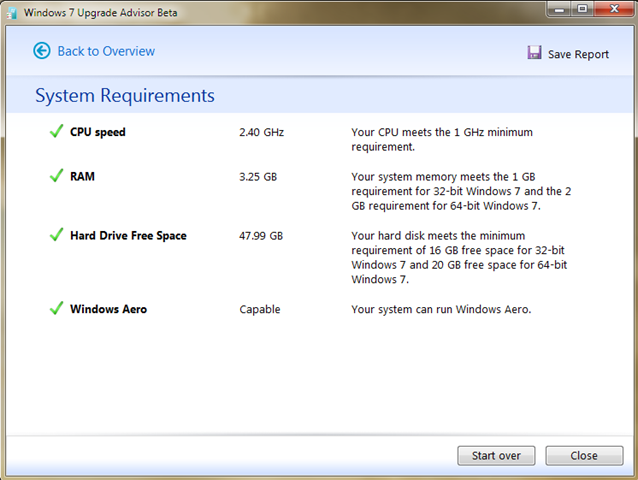
With the official consumer release of Windows 7 just a few days away, a lot of people are probably wondering whether their computers will be able to run Microsoft’s newest OS.  Potential issues include device drivers, hardware, software, and user settings.  The free Windows 7 Upgrade Advisor Beta can help you answer these questions quickly an easily.  The process couldn’t be much easier: Just install and run the Upgrade Advisor (it runs on Windows XP, Windows Vista, and Windows 7).  The utility will take a few minutes to run and will then return a report like the one below (assuming you’re running a fairly current desktop or notebook computer).

image

You can also view a list of system requirements and your current specifications:

image

For the most part, users shouldn’t have much trouble when upgrading to Windows 7.  The magnitude of under-the-hood architectural changes is much less than it was during the leap from Windows XP to Windows Vista.  And, third-party hardware and software vendors have finally caught up (for the most part) and are providing reliable drivers.

From my experience, Windows 7 seems to run about as fast as Windows XP (which means it’s much faster than Windows Vista).  I have upgraded numerous desktops and notebooks to Windows 7 without any problems that I couldn’t quickly and easily resolve.  I think it will be a worthy upgrade for most users, and the Upgrade Advisor should be able to provide some warnings related to potential problems before you take the plunge.

Virtual Event: The Business Case for Windows 7

If you haven’t had a chance to work with Windows 7 yet, or if you’re wondering what’s in it for business users and administrators, you’ll probably benefit from attending an upcoming virtual conference.  The “conference” will take place entirely online.  Using a browser, you can access a pretty slick online UI that allows you to do “real” conference stuff. 

The InformationWeek Business Technology Network is presenting a virtual event titled The Business Case for Windows 7.  As the name implies, it focuses on ways in which corporate users and administrators can benefit from switching to Microsoft’s newest OS (which is scheduled for general availability on October 23rd).  Here’s a description of the conference from the event’s web page:

Business Case for Win7

The Business Case for Windows 7
Microsoft’s launch of the Windows 7 operating system is one of the most anticipated technology introductions of this year, and enterprises both large and small are evaluating the benefits – and weighing the challenges – of migrating to the new platform. In this virtual event, attendees will have the opportunity to engage with and learn from the developers of Win 7, the testers who put it through its paces, and peers who are considering taking the plunge.  Experts will discuss the product’s features, performance issues, security and management processes, compatibility concerns, and more.

You can sign up to attend the virtual conference using the Registration Page

At the virtual conference, you can talk to people at virtual booths, ask questions to technical experts who are available live, and download videos, webcasts, white papers, etc.  Microsoft, Thawte, and Global Knowledge are among the sponsors.  I’ll be present tomorrow (Sept. 30th) to answer questions in the Microsoft booth.  The virtual conference will go on for two days and contains numerous events and keynote presentations.  Be sure to stop by – it certainly beats the time, cost, and frustration of having to travel to real conferences.

Windows 7 UI Enhancements for Power Users

While there are benefits to being a highly technical “power user”, it can also come as a drawback in certain situations.  No, I’m not talking about being the de facto “Tech Support Provider” for friends and family…  It seems that many O/S’s are designed for the “lowest common denominator” user, and we techies are left with having to install hacks, reconfigure default settings, and to search for third-party utilities that fill in the gaps.  Products such as Mac OS X (with it’s one default mouse button and many missing keyboard conveniences) might work well for basic tasks, it leaves a lot to be desired.  I was disappointed that Windows Vista’s “new” desktop didn’t provide much in the way of productivity-enhancing features. 

Well, Windows 7 is about to hit the stage, and it looks like a winner from a usability standpoint.  A simple web search will return dozens of articles that look at many of the UI changes and improvements and blogs like Engineering Windows 7 go into some of the decision decisions in significant depth.  Rather than repeat the content of those articles, I’ll briefly highlight the features I’ve enjoyed most during my past few months with Windows 7:

  • The new taskbar: There are also some features that might not be readily evident.  For example:
    • You can see icons for all of your most-used programs, whether they’re running or not.  They’re always right where you expect them, which really saves time when you have a bunch of different programs open at the same time.
    • Applications can support jump lists, recent documents, and other special features that are available by hovering over an application icon or right-clicking on it.  Apps such as IE already support this quite well.
    • You can easily dock the Taskbar to the left, right, top, or bottom of the window.  In fact, this even works properly with multiple monitors.  So far, I have stuck with the standard bottom-of-screen layout, but I have tried docking it to the left, and it works well.
    • Windows7Taskbar

  • Improved multi-monitor support:  Windows 7 makes it much easier to work with multiple monitors but allowing you to quickly drag windows (even when they’re maximized) to other monitors.  In fact, my eVGA USB-to-DVI adapter is working great on Windows 7 (though I did need to download and and install the beta drivers manually).
  • Keyboard Shortcuts for Window Management: Using intuitive keyboard shortcuts is far more effective and efficient than using the mouse to arrange windows.  For example, think of all the work it typically takes to view two windows side-by-side (I never bothered to try it manually and relied on third-party utilities like DisplayFusion to help).  Using the Windows Key in conjunction with the arrow keys allow you to maximize, minimize, and move windows to any part of any monitor.  This alone saves a lot of time and really takes advantage of my three-monitor setup.  Finally, you can use Windows Key – # to open the appropriate program or folder on your computer based on its located on the taskbar. 
  • Overall Stability:  As I’ve mentioned in previous posts, I had been quite disappointed with Windows Vista’s performance and reliability (even after applying both service packs).  On the whole, Windows 7 responds much more quickly and the desktop, UI, and applications are completely reliable.  In fact, I typically reboot my computer (which runs a ton of development stuff) once a week or so.
  • New wallpapers and desktop themes: Sometimes, it’s the little(r) things that count the most.  Windows 7 ships with a great collection of default themes and backgrounds.  And, you can also download many more from the Windows 7 Personalize Your PC site.  The download process is seamless and I hope Microsoft will continue to add content frequently (as opposed to the rather missed opportunity with Windows Vista Ultimate Extras).  Furthermore, the UI improvements for switching between desktop settings has been streamlined, making it simple to make changes without third-party utilities.
  • Sidebar Gadgets: They can now be placed anywhere on the desktop and seem to use fewer system resources (just a subjective observation – I haven’t done any testing).  Unfortunately, there’s still a relative dearth of useful gadgets, but hopefully that will finally change.
  • Expanded right-click menu:  Hold SHIFT and right-click on a file or folder to see some useful new options, such as “Open Command Window Here”.  You could enable this feature in XP/Vista, but it required a Registry change and would always appear in an already long list of options.
  • ClearType and Color Tuner: Matching colors on multiple monitors has always been a pain.  While drivers from Nvidia and ATI allow you to change RGB values, these settings never seemed to “stick” for me.  Windows 7 includes built-in functionality for handling this, and it seems to work.  Better yet, it efficiently supports a multi-monitor setup.

ColorTuner

Overall, I think Microsoft has done a great  job of balancing usability for less-technical users with the features that those of the geekier persuasions can appreciate.  I have (against some practical warnings and advice) switched to using the Windows 7 Release Candidate as my primary O/S.  I’ve run into very few problems so far.  So… which useful features have I missed?