Archive for October, 2007

IT Fights Back: Virtualization SLAs and Charge-Backs

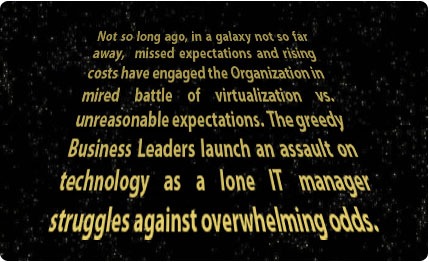
My article, the first in a series entitled, “Fighting The Dark Side of Virtualization” is now available on the Virtual Strategy Magazine Web site.  The article, IT Fights Back: Virtualization SLAs and Charge-Backs, focuses on ways in which IT departments can help manage issues such as VM sprawl (the explosive proliferation of VMs), while containing costs.  As a quick teaser, here’s the opening marquee:

temp

1

The adventure begins…

Managing Virtualization Storage for Datacenter Managers

This article was first published on SearchServerVirtualization.TechTarget.com.

Deploying virtualization into a production data center can provide an interesting mix of pros and cons. By consolidating workloads onto fewer server, physical management is simplified. But what about managing the VMs? While storage solutions can provide much-needed flexibility, it’s still up to datacenter administrators to determine their needs and develop appropriate solutions. In this article, I’ll present storage-related considerations for datacenter administrators.

Estimating Storage Capacity Requirements

Virtual machines generally require a large amount of storage. The good news is that this can, in some cases, improve storage utilization. Since direct-attached storage is not confined to a per-server basis (which often results in a lot of unused space), using centralized storage arrays can help. There’s also a countering effect, however: Since the expansion of virtual disk files is difficult to predict, you’ll need to leave some unallocated space for expansion. Storage solutions that provide for over-committing space (sometimes referred to as “soft-allocation”) and for dynamically resizing arrays can significantly simplify management.

  • To add up the storage requirements, you should consider the following:
  • The sum of the sizes of all “live” virtual disk files
  • Expansion predictions for virtual disk files
  • State-related disk files such as those used for suspending virtual machines and maintaining point-in-time snapshots
  • Space required for backups of virtual machines

All of this can be a tall order, but hopefully the overall configuration is no more complicated than that of managing multiple physical machines.

Placing Virtual Workloads

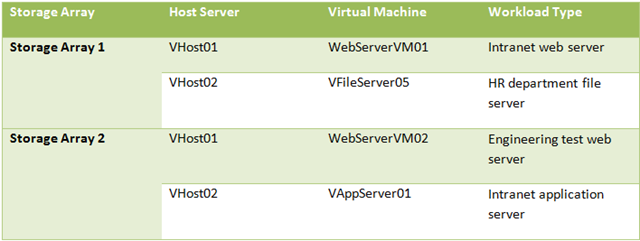
One of the best ways to reduce disk contention and improve overall performance is to profile virtual workloads to determine their requirements. Performance statistics help determine the number, size, and type of IO operations. Table 1 provides an example.

image

Table 1: Assigning workloads to storage arrays based on their performance requirements

In the provided example, the VMs are assigned to separate storage arrays to minimize contention. By combining VMs with “compatible” storage requirements on the same server, administrators can better distribute load and increase scalability.

Selecting Storage Methods

When planning to deploy new virtual machines, datacenter administrators have several different options. The first is to use local server storage. Fault-tolerant disk arrays that are directly-attached to a physical server can be easy to configure. For smaller virtualization deployments, this approach makes sense. However, when capacity and performance requirements grow, adding more physical disks to each server can lead to management problems. For example, arrays are typically managed independently, leading to wasted disk space and requiring administrative effort.

That’s where network-based storage comes in. By using centralized, network-based storage arrays, organizations can support many host servers using the same infrastructure. While support for technologies varies based on the virtualization platform, NAS, iSCSI, and SAN-based storage are the most common. NAS devices use block-level IO and are typically used as file servers. They can be used to store VM configuration and hard disk files. However, latency and competition for physical disk resources can be significant.

SAN and iSCSI storage solutions perform block-level IO operations, providing raw access to storage resources. Through the use of redundant connections and multi-pathing, they can provide the highest levels of performance, lowest latency, and simplified management.

In order to determine the most appropriate option, datacenter managers should consider workload requirements for each host server and its associated guest OS’s. Details include the number and types of applications that will be running, and their storage and performance requirements. The sum of this information can help determine whether local or network-based storage is most appropriate.

Monitoring Storage Resources

CPU and memory-related statistics are often monitoring for all physical and virtual workloads. In addition to this information, disk-related performance should be measured. Statistics collected at the host server level will provide an aggregate view of disk activity and whether storage resources are meeting requirements. Guest-level monitoring can help administrators drill-down into the details of which workloads are generating the most activity. While the specific statistics that can be collected will vary across operating systems the types of information that should be monitoring include:

  • IO per Second (IOPs): This statistic refers to the number of disk-related transactions that are occurring at a given instant. IOPs are often used as the first guideline for determining overall storage requirements.
  • Storage IO Utilization: This statistic refers to the percentage of total IO bandwidth that is being consumed at a given point in time. High levels of utilization can indicate the need to upgrade or move VMs.
  • Paging operations: Memory-starved VMs can generate significant IO traffic due to paging to disk. Adding or reconfiguring memory settings can help improve performance.
  • Disk queue length: The number of IO operations that are pending. A consistently high number will indicate that storage resources are creating a performance bottleneck.
  • Storage Allocation: Ideally, administrators will be able to monitor the current amount of physical storage space that is actually in use for all virtual hard disks. The goal is to proactively rearrange or reconfigure VMs to avoid over-allocation.

VM disk-related statistics will change over time. Therefore, the use of automated monitoring tools that can generate reports and alerts are an important component of any virtualizations storage environment.

Summary

Managing storage capacity and performance should be high on the list of responsibilities for datacenter administrators. Virtual machines can easily be constrained by disk-related bottlenecks, causing slow response times or even downtime. By making smart VM placement decisions and monitoring storage resources, many of these potential bottlenecks can be overcome. Above all, it’s important for datacenter administrators to work together with storage managers to ensure that business and technical goals remain aligned over time.

Virtualization Considerations for Storage Managers

This article was first published on SearchServerVirtualization.TechTarget.com.

It’s common for new technology to require changes in all areas of an organization’s overall infrastructure. Virtualization is no exception. While many administrators often focus on CPU and memory constraints, storage-related performance is also a very common bottleneck. In some ways, virtual machines can be managed like physical ones. After all, each VM runs its own operating systems, applications, and services. But there are also numerous additional considerations that must be taken into account when designing a storage infrastructure. By understanding the unique needs of virtual machines, storage managers can build a reliable and scalable data center infrastructure to support their VMs.

Analyzing Disk Performance Requirements

For many types of applications, the primary consideration around which the storage infrastructure is designed is based on I/O operations per second (IOPS). IOPS refer to the number of read and write operations that are performed, but do not always capture the whole picture. Additional considerations include the type of activity. For example, since virtual disks that are stored on network-based storage arrays must support guest OS disk activity, the average I/O request size tends to be small. Additionally, I/O requests are frequent and often random in nature. Paging can also create a lot of traffic on memory-constrained host servers. There are also other considerations that will be workload-specific. For example, it’s also good to measure the percentage of read vs. write operations when designing the infrastructure.

Now, multiply all of these statistics by the number of VMs that are being supported on a single storage device, and you are faced with the very real potential for large traffic jams. The solution? Optimize the storage solution for supporting many, small, and non-sequential IO operations. And, most importantly, distribute VMs based on their levels and types of disk utilization. Performance monitoring can help generate the information you need.

Considering Network-Based Storage Approaches

Many environments already use a combination of NAS, SAN, and iSCSI-based store to support their physical servers. These methods can still be used for hosting virtual machines, as most virtualization platforms provide support for them. For example, SAN- or iSCSI-based volumes that are attached to a physical host server can be used to store virtual machine configuration files, virtual hard disks, and related data. It is important to note that, by default, the storage is attached to the host and not to the guest VM. Storage managers should keep track of which VMs reside on which physical volumes for backup and management purposes.

In addition to providing storage at the host-level, guest operating systems (depending on their capabilities) can take advantage of NAS and iSCSI-based storage. With this approach, VMs can directly connect to network-based storage. A potential drawback, however, is that guest operating systems can be very sensitive to latency, and even relatively small delays can lead to guest OS crashes or file system corruption.

Evaluating Useful Storage Features

As organizations place multiple mission-critical workloads on the same servers through the use of virtualization, they can use various storage features to improve reliability, availability and performance. Implementing RAID-based striping across arrays of many disks can help significantly improve performance. The array’s block size should be matched to the most common size of I/O operations. However, more disks means more chances for failures. So, features such as multiple parity drives and hot standby drives are a must.

Fault tolerance can be implemented through the use of multi-pathing for storage connections. For NAS and iSCSI solutions, storage managers should look into having multiple physical network connections and implementing fail-over and load-balancing features by using network adapter teaming. Finally, it’s a good idea for host servers to have dedicated network connections to their storage arrays. While you can often get by with shared connections in low-utilization scenarios, the load placed by virtual machines can be significant and can increase latency.

Planning for Backups

Storage administrators will have the need to backup many of their virtual machines. Apart from allocating the necessary storage space, it is necessary to develop a method for dealing with exclusively-locked virtual disk files. There are two main approaches:

  • Guest-Level Backups: In this approach, VMs are treated like physical machines. Generally, you would install backup agents within VMs, define backup sources and destinations, and then let them go to work. The benefit of this approach is that only important data is backed up (thereby reducing required storage space). However, your backup solution must be able to support all potential guest OS’s and versions. And, the complete recovery process can involve many steps, including reinstalling and reconfiguring the guest OS.
  • Host-Level Backups: Virtual machines are conveniently packaged into a few important files. Generally, this includes the VM configuration file and virtual disks. You can simply copy these files to another location. The most compatible approach involves stopping or pausing the VM, copying the necessary files, and then restarting the VM. The issue, however, is that this can require downtime. Numerous first- and third-party solutions are able to backup VMs while they’re “hot”, thereby eliminating service interruptions. Regardless of the method used, replacing a failed or lost VM is easy – simple restore the necessary files to the same or another host server and you should be ready to go. The biggest drawback of host-level backups is in the area of storage requirements. You’re going to be allocating a ton of space for the guest OS’s, applications, and data you’ll be storing.

Storage solutions options such as the ability to perform snapshot-based backups can be useful. However, storage administrators should thoroughly test the solution and should look for explicitly-stated virtualization support from their vendors. Remember, backups must be consistent to a point in time, and non-virtualization-aware solutions might neglect to flush information stored in the guest OS’s cache.

Summary

By understanding and planning for the storage-related needs of virtual machines, storage administrators can help their virtual environments scale and keep pace with demand. While some of the requirements are somewhat new, many involve utilizing the same storage best practices that are used for physical machines. Overall, it’s important to measure performance statistics and to consider storage space and performance when designing a storage infrastructure for VMs.

Advanced Backup Options for Virtual Machines

This article was first published on SearchServerVirtualization.TechTarget.com.

It’s a pretty big challenge to support dozens or hundreds of separate virtual machines. Add in the requirement for backups – something that generally goes without saying – and you have to figure out how to protect important information. Yes, that usually means at least two copies of each of these storage hogs. I understand that you’re not made of storage (unless, of course, you’re the disk array that’s reading this article on the web server). So what should you do? In this tip, I’ll outline several approaches to performing backups for VMs, focusing on the strengths and limitations of each.

Determining Backup Requirements

Let’s start by considering the requirements for performing backups. The list of gaols is pretty simple, in theory:

  • Minimize data loss
  • Minimize recovery time
  • Simplify implementation and administration
  • Minimize costs and resource usage

Unfortunately, some of these objectives are often at odds with each other. Since implementing any solution takes time and effort, start by characterizing the requirements for each of your virtual machines and the applications and services they support. Be sure to write in pencil, as it’s likely that you’ll be revising these requirements. Next, let’s take a look at the different options for meeting these goals.

Application-Level Backups

The first option to consider for performing backups is that of using application features to do the job. There’s usually nothing virtualization-specific about this approach. Examples include:

  • Relational Database Servers: Databases were designed to be highly-available and it should come as no surprise that there are many ways of using built-in backup methods. In addition to standard backup and restore operations, you can use replication, log-shipping, clustering, and other methods to ensure that data remains protected.
  • Messaging Servers: Communications platforms such as Microsoft Exchange Server provide methods for keeping multiple copies of the data store in sync. Apart from improving performance (by placing data closer to those who need it), this can provide adequate backup functionality.
  • Web Servers: The important content for a web server can be stored in a shared location or can be copied to each node in a web server farm. When a web server fails, just restore the important data to a standby VM, and you’re ready to go. Better yet, use shared session state or stateless application features and a network load-balancer to increase availability and performance.

All of these methods allow you to protect against data loss and downtime by storing multiple copies of important information.

Guest-Level Backups

What’s so special about VMs, anyway? I mean, why not just treat them like the physical machines that they think they are? That’s exactly the approach with guest-level backups. The most common method with this approach is to install backup agents within the guest OS and to specify which files should be backed up and their destinations. As with physical servers, administrators can decide what really needs to be backed up – generally just data, applications, and configuration files. That saves precious disk space and can reduce backup times.

There are, however, drawbacks to this backup approach. First, your enterprise backup solution must support your guest OS’s (try finding an agent for OS/2!) Assuming the guest OS is supported, the backup and recovery process is often different for each OS. This means more work on the restore side of things. Finally, the restore process can take significant time, since a base OS must be installed and the associated components restored.

Examples of popular enterprise storage and backup solutions are those from Symantec, EMC, Microsoft and many other vendors.

Host-Level Backups

Host-level backups take advantage of the fact that virtual machines are encapsulated in one or more virtual disk files, along with associated configuration files. The backup process consists of making a copy of the necessary files from the host OS’s file system. Host-level backups provide a consistent method for copying VMs since you don’t have to worry about differences in guest operating systems. When it comes time to restore a VM (and you know it’s going to happen!), all that’s usually needed is to reattach the VM to a working host server.

However, the drawback is that you’re likely to need a lot of disk space. Since the entire VM, including the operating system, applications, and other data are included in the backup set, you’ll have to allocate the necessary storage resources. And, you’ll need adequate bandwidth to get the backups to their destination. Since virtual disk files are exclusively locked while a VM is running, you’ll either need to use a “hot backup” solution, or you’ll have to pause or stop the VM to perform a backup. The latter option results in (gulp!) scheduled downtime.

Solutions and technologies include:

  • VMware: VMotion; High Availability; Consolidated Backup; DRS
  • Microsoft Volume Shadow Services (VSS)

File System Backups

File system backups are based on features available in storage arrays and specialized software products. While they’re not virtualization-specific, they can help simplify the process of creating and maintaining VM backups. Snapshot features can allow you make a duplicate of a running VM, but you should make sure that your virtualization platform is specifically supported. File system replication features can use block- or bit-level features to keep a primary and backup copy of virtual hard disk files in-sync.

Since changes are transferred efficiently, less bandwidth is required. And, the latency between when modifications are committed on the primary VM and the backup VM can be minimized (or even eliminated). That makes the storage-based approach useful for maintaining disaster recovery sites. While third-party products are required, file system backups can be easy to setup and maintain. But, they’re not always ideal for write-intensive applications and workloads.

Potential solutions include products from Double-Take Software and from Neverfail. Also, if you’re considering the purchase of a storage solution, ask your vendor about replication and snapshot capabilities, and their compatibility with virtualization.

Back[up] to the Future

Most organizations will likely choose different backup approaches for different applications. For example, application-level backups are appropriate for those systems that support them. File system replication is important for maintaining hot or warm standby sites and services. Guest- and host-level backups balance ease of backup/restore operations vs. the amount of usable disk space. Overall, you should compile the data loss, downtime and cost constraints, and then select the most appropriate method for each type of VM. While there’s usually no single answer that is likely to meet all of your needs, there are some pretty good options out there!