Archive for January, 2008

Windows Server 2008 Webcasts: Info in 10-Minute Chunks

One of the hardest parts of learning about a huge new operating system release like Windows Server 2008 is sifting through all of the available information for for what really matters to you.  For example, if you routinely have to support Branch Office scenarios for your domain controllers, you’d like to avoid all of the marketing babble about how revolutionary the product is and get right down to to the technical details.  And, if you’re like me, you don’t want to skip around a 90-minute webcast to find the five minutes of information you really want to hear.

The Windows Server 2008 Webcast Express Demo Videos highlights the many different improvements and new features in Windows Server 2008 through some concise videos (most are around 10 minutes long).  It focuses on screencasts rather than PowerPoint slides so you can see various features in action.  I recently checked out the High Performance and Scalable Networking webcast to learn about QoS options and IPv6 updates.  Overall, this is my preferred way of getting information.  I rarely like to set aside 90 minutes or so to attend a webcast, but it’s easy to find 10 – 15 minutes to learn about something new just about every day.
Using Google Trends and Zeitgeist

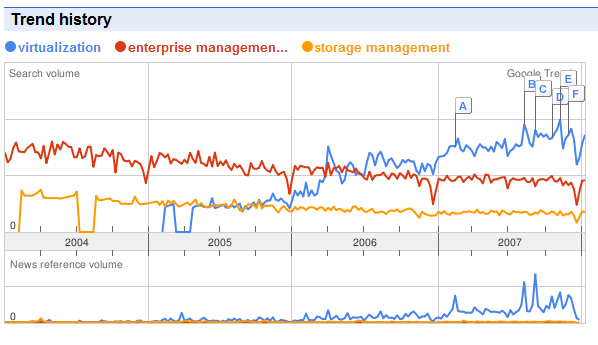
One of the most interesting things about our reliance on search engines is the ability to see what others are looking for.  Google, for one, provides numerous tools for monitoring search patterns and other details.  I have been aware of Google Trends for quite a while, but only recently started using it for doing some searches.  The site allows you to enter one or more search terms and provides you with graphs related to the results.  Following is a chart from the results of a comparison of searches for the popular terms virtualization, enterprise management, and storage management.

image

image

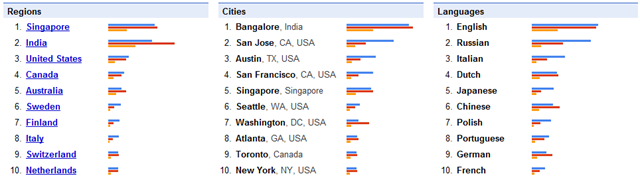
I chose these terms as a simple example of the information that’s available.  In addition to trend information on the number of searches, you can find the source by region/city India and Singapore seem to be really interested in these IT topics), coordination with information about news on the various topics, and a graph of news references over time.  You can also click on a region to drill-down on source locations or limit the years of analysis. 

You could try entering your own name or your blog site, but keep in mind that terms have to be pretty high before the service will return results.  My major complaint with the site is that the y-axis of the graph does not show any scale.  Rather, it just depicts "Search Volume".  I’m sure this is done for competitive reasons, and it’s a reasonable trade-off for the free information.

Of course, stat-junkies would love to see summary information to get their finger on the pulse of the world (according to search terms).  Google Zeitgeist provides just that: Year-end summaries and breakdowns of interesting topics.

Keep in mind that the type of information you can extract from search term statistics can sometimes be misleading.  For example, I’ll bet that people rarely search for the terms "Oracle" and "Microsoft" vs. just going to the respective vendors’ sites directly.  Then again, searches for the term "Google" seem fairly high based on Google Trends results.  Overall, features like this make for some interesting observations.  I primarily use Google, but I’m interested in hearing from readers: What other online statistics services am I missing?

Creating VMs with Hyper-V

If you’re itching to get your hands (or at least your eyes) on Hyper-V, you can read more about the process of using it’s new management tools from a SearchServerVirtualiztion.com tip I recently wrote.  The article is available for free (registration might be required).  From the introduction to Creating Microsoft Hyper-V virtual machines:

Can you think of a better past time than to start working (or playing) with some upcoming beta software? OK, I can too, but it still beats most aspects of getting back to the daily grind. If you have already installed Hyper-V on a compatible machine, you can get started with creating and configuring new virtual machines (VMs). I’ll present the steps required to configure the server and to create and import VMs.

Also, check out my upcoming screencasts on the same topics.

Evaluating Virtualization Management Solutions: Free eBook Chapter

The tenth and final chapter of my eBook, the Definitive Guide to Virtual Platform Management is now available for free download (registration is required).  The complete eBook, available as a single PDF, should be available sometime in the near future.  The chapter focuses on details that IT professionals should keep in mind when looking for tools to manage virtualization.  From the introduction:

IT organizations are often aware of the fact that costs associated with managing new technology can far outweigh the initial deployment costs. Virtualization is no exception. Although the ability to run multiple isolated workloads on the same hardware can provide immediate cost savings and benefits throughout the environment, the associated administration tasks involve significant time and effort.

Throughout the previous chapters, I have covered a wide array of practices and recommendations for gaining and retaining control over virtualized environments. The primary challenge is that properly managing an environment that contains dozens (if not hundreds) of virtual machines can be very difficult. When these tasks are performed manually, IT organizations must absorb significant costs.

Fortunately, there’s a better way—through the use of virtualization-aware enterprise automation solutions much of the work can be simplified or even eliminated. With the proliferation of virtual machine technology, literally dozens of products are available for meeting these needs. The focus of this chapter is on presenting factors that should be considered when evaluating these solutions. I’ll present details related to the overall goals of virtualization management, along with specific features IT organizations should look for in products that will help manage their mixed virtual and physical infrastructures.

I hope readers find the entire guide to be useful.  Feel free to leave questions and comments here.

Tools for Managing Virtualization

While virtualization technology certainly helps reduce some of the most important problems for IT organizations, there’s a potential downside.  Many organizations have found that they’re ill-equipped to manage the dozens or hundreds of VMs that tend to pop-up once virtualization software has been deployed.  Some of these deployments circumvent IT, while others just slip in under the radar.  For example, VMs that are only occasionally powered on or that are not connected to external networks can be overlooked entirely.  When they’re brought online, they’re often out-of-date with respect to patches.

Megan Santosus recently interviewed me for her SearchServerVirtualization.com article, Does virtualization need special management tools?  From the article:

If server virtualization has a dark side, it may be virtual machine (VM) sprawl. The principal problem created by sprawl is that IT administrators can’t certify that all deployed VMs meet an organization’s policies and procedures just as they would certify physical servers. "Deploying VMs at many organizations circumvents the standard processes for deploying physical servers," noted SearchServerVirtualization.com contributor Anil Desai.

The main idea is that virtualization-aware tools are a must for organizations that must maintain control of their production deployments.  Embotics is one of many organizations that has understood that need and has developed products that are focused on virtual environments.  For more details, see the White Paper that I wrote for Embotics, titled Controlling VM Sprawl: Best Practices for Maintaining Control of Virtualized Infrastructures.

Free Microsoft Learning Course on Hyper-V

The Microsoft eLearning web site includes a wide variety of different online training courses.  I have used many of these to keep up-to-date with new releases and product features.  Best of all, there are many courses that are available for free.  One such course is Clinic 5935: Introducing Server Virtualization in Microsoft Windows Server 2008 (RC0)

While the naming and terminology of the Hyper-V feature uses some outdated terms, all of the major technical information should still be accurate.  This is a good place to start with Microsoft’s E-Learning and to lean about Microsoft’s upcoming virtualization products.  Thanks’s to virtualization.info for the link.

Understanding Hyper-V Drivers

One of the more challenging aspects of getting up to speed about Microsoft’s Hyper-V technology is that of understanding enlightenments and integration components (ICs).  The terms are new, as is the underlying technology.  A recent blog post from the MSDN Blogs site helps explain the concepts.  The post is titled Hyper-V: Integration Components and Enlightenments and does what it promises.  A few block diagrams and images would be helpful. 

Hyper-V is currently available in beta form and will be supported on Windows Server 2008 later this year, but it’s never too early to start learning about its architecture.  You can expect more information to become available as the product gets closer to its final stages.

Managing Multiple Monitors on Windows Vista

Among my many gripes about Windows Vista (see My Struggles with Windows Vista), is the lack of truly useful window management shortcuts.  Multiple monitor configurations are becoming increasingly common, and the Windows desktop simply hasn’t kept pace.  Sure, if I’m willing to click on numerous UI elements, I can reliably move a maximized window from one monitor to another and resize it to my liking.  My current setup includes a widescreen 22" LCD and a 19" LCD that’s rotated for a portrait view (it’s great for editing documents and reading web pages).  Overall, the common task of managing windows on multiple monitors shouldn’t be an ordeal.

Fortunately, there are several third-party software products (some free) which help make the process easier.  I have evaluated a couple of them and thought I’d mention my findings:

  • UltraMon is a commercial product that provides features for managing multiple monitors.  It allows you to span wallpapers across multiple disparate displays.  Most importantly (for me), it allows me to create simple keyboard shortcuts for moving and resizing windows between monitors.  It’s a bit pricey for the functionality, but it really does help.  Unfortunately, I started having some display driver issues with my Nvidia GeForce 8300 GS drivers after I installed the latest beta.  Hopefully a final release version will address that.
  • DisplayFusion: DisplayFusion looks like it was originally designed for managing wallpaper settings for multiple monitors.  However, it offers a simplified configuration UI that allows you to create hotkey shortcuts for moving and resizing windows.  Currently, this is my favorite as it hasn’t broken Windows Vista and you can’t beat the price (it’s free, but donations are accepted).  This one gets my recommendation, at least for now.
  • GoScreen: GoScreen is designed for use on Ultra-Mobile PCs (UMPCs), such as tablet computers or portables that have touchscreens.  It provides features for more easily managing windows.  I haven’t yet tested the product, but it does seem to have a large number of useful features

Overall, these utilities effectively fill some gaps in Windows Vista and make me far more productive (I also couldn’t turn down the shot at alliteration in this post’s title).