Archive for October, 2009

Microsoft Virtual Event: The New Efficiency

If you’ve been following some of the latest keynotes and presentations from Microsoft, you’ve probably run into the theme of “The New Efficiency”.  Microsoft has been using this term to describe the benefits of Windows 7, Windows Server 2008 R2 and Exchange Server 2010.  While listening to presentations can be useful, it’s also valuable to spend some interactive time with other technical professionals and experts.  To that end, Microsoft is hosting another live “Virtual Conference” on October 27, 2009.  Visit the Event Overview page to see details of the virtual conference.  Here’s an excerpt that describes what’s covered and who will be presenting:

Join renowned Microsoft technologies expert Paul Thurrott, Windows IT Pro senior technical director Michael Otey, Exchange guru Paul Robichaux, and Windows IT Pro editor in chief Jeff James for an in-depth, spin-free deep dive into the new efficiency.
In just three hours, directly from your own computer, the keynote and three technical sessions will provide you with:

  • an overview of everything that Windows® 7 has to offer
  • a deep-dive into enterprise-oriented features such as AppLocker, Branche Cache, DirectAccess, federated search, and BitLocker to Go
  • a complete coverage of all of the new features and functionality brought by Windows® Server 2008 R2, including Hyper-V virtualization with live migration and PowerShell 2.0
  • an in-depth presentation of the rich user experience, the many deployment options, and information protection and control capabilities offered by Microsoft® Exchange Server 2010
  • a clear understanding of the ways Windows® 7, Windows® Server 2008 R2, and Microsoft® Exchange Server 2010 work better together

This event is presented in an interactive, real-life simulation! You will experience a lifelike visual environment, networking and interactive tools, staffed sponsor booths, and educational chats to complement each conference session.

I’ll be available to answer technical questions in the Microsoft booth during the morning sessions (from 9:30am to around noon Central time).  Feel free to stop by and ask questions or view the materials and presentations that are available online.

For more details, see the Agenda and Speaker Info pages.  Be sure to Register – it’s free, and you don’t have to leave the comfort of your home or office to attend. 

Visual Studio 2010 Beta 2 Available for Download

image

Microsoft’s Visual Studio 2010 development environment is a complete overhaul of the popular IDE.  It will continue to support all current Microsoft development languages and technologies, but it also features a completely revamped UI that’s based on Windows Presentation Foundation (WPF).  If you have an MSDN or Microsoft TechNet subscription, you can download the files now.  The available editions include:

  • Visual Studio 2010 Professional
  • Visual Studio 2010 Premium
  • Visual Studio 2010 Ultimate
  • Visual Studio 2010 Team Foundation Server

You can also find a number of “Additional Resources”, including web installer packages and tools for testing and team-based development.  More information is available on the Visual Studio 2010 Product Information Site (note that, as of this writing, the site still provides links to the Beta 1 version of VS 2010).

Mary-Jo Foley at ZDNet’s Microsoft Watch provides some more details in Testers to get Visual Studio 2010 Beta 2 this week; final by March 2010.  It looks like the plan is to open up the beta to all testers later this week.  The article also provides some basic details about the various editions, their estimated prices, and how you can get hold of them upon release.

The first official beta version of VS 2010 came out in May, so it has been a refresh is very welcome.  I have done some informal testing of the first beta and it seems to be fairly stable overall.  That version was clearly nowhere near the polish that the release version should have, but it was certainly usable and provided some exciting new features (I’ll cover the highlights in an upcoming post).

Currently, it looks like the final version will be available in Q1, 2009 (based on reports from ZDNet and other bloggers).  Let’s hope that it provides all the improvements and new features we’ve been waiting for!

Can your computer run Windows 7?

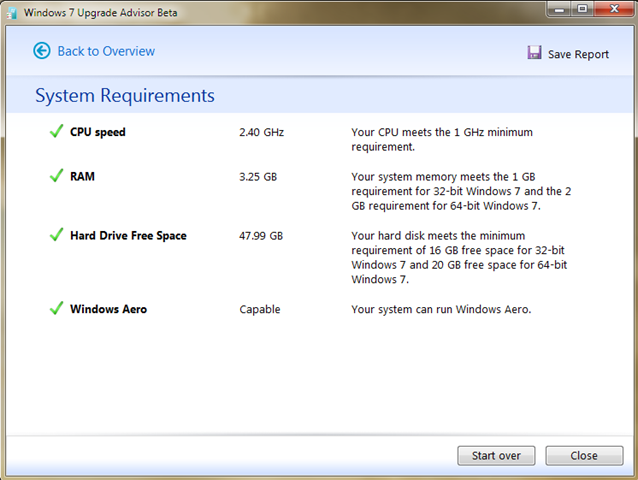
With the official consumer release of Windows 7 just a few days away, a lot of people are probably wondering whether their computers will be able to run Microsoft’s newest OS.  Potential issues include device drivers, hardware, software, and user settings.  The free Windows 7 Upgrade Advisor Beta can help you answer these questions quickly an easily.  The process couldn’t be much easier: Just install and run the Upgrade Advisor (it runs on Windows XP, Windows Vista, and Windows 7).  The utility will take a few minutes to run and will then return a report like the one below (assuming you’re running a fairly current desktop or notebook computer).

image

You can also view a list of system requirements and your current specifications:

image

For the most part, users shouldn’t have much trouble when upgrading to Windows 7.  The magnitude of under-the-hood architectural changes is much less than it was during the leap from Windows XP to Windows Vista.  And, third-party hardware and software vendors have finally caught up (for the most part) and are providing reliable drivers.

From my experience, Windows 7 seems to run about as fast as Windows XP (which means it’s much faster than Windows Vista).  I have upgraded numerous desktops and notebooks to Windows 7 without any problems that I couldn’t quickly and easily resolve.  I think it will be a worthy upgrade for most users, and the Upgrade Advisor should be able to provide some warnings related to potential problems before you take the plunge.

Convert Physical Hard Disks to VHDs using Disk2VHD

There are numerous free and commercial physical-to-virtual (P2V) conversion tools on the market, but often they require some setup or at least a minimal initial investment.  Sometimes, all you want to do is make a copy of a physical disk and then attach it to a virtual machine.  The Disk2Vhd utility is a simple program for doing just that.  Here’s the info from the TechNet site:

Disk2vhd is a utility that creates VHD (Virtual Hard Disk – Microsoft’s Virtual Machine disk format) versions of physical disks for use in Microsoft Virtual PC or Microsoft Hyper-V virtual machines (VMs). The difference between Disk2vhd and other physical-to-virtual tools is that you can run Disk2vhd on a system that’s online. Disk2vhd uses Windows’ Volume Snapshot capability, introduced in Windows XP, to create consistent point-in-time snapshots of the volumes you want to include in a conversion. You can even have Disk2vhd create the VHDs on local volumes, even ones being converted (though performance is better when the VHD is on a disk different than ones being converted).

You can download Disk2Vhd directly from the Microsoft TechNet SysInternals site (it’s only 704KB).  You can then run it directly from your file system to launch the GUI.

While it’s easy to create a VHD, it’s important to keep in mind potential issues with using this approach to “clone” an already-running machine.  Depending on your environment, you might need to consider the impacts of network addresses, MAC addresses, computer names and Security Identifiers (SIDs).  Most of this only applies if you’re using this approach to clone a non-OS hard disk.  Overall, the utility makes it really simple to perform a P2V conversion of a hard disk.