A few weeks after completing the migration from Gmail to Office 365, I’m pretty happy with the improvements. For now, I think the Office 365-based approach with a hosted Exchange Server is everything I need to efficiently manage e-mail on multiple devices and online. I like the ability to quickly and easily install and configure a full version of Microsoft Office on multiple computers without additional licensing charges, activation, and manual license tracking. With the addition of new features like the Microsoft Office App Store, I think the overall experience will continue to improve. Of course, if I do decide to make changes, I’ll plan to post the details on this blog.
Blog Post Index
Here’s a complete list of the posts related to my move from Gmail to Office 365 (in suggested reading order):
In my quest to migrate from Gmail to Office 365, I found a lot of useful information from places around the Web. I have tried to avoid re-writing information that’s better covered elsewhere, and I recommend the following links for more information:
The Office 365 Blog: This is Microsoft’s official blog for the Office 365 program, and it’s a good place to find official announcements and related features and tips.
The Microsoft Office 365 Technical Community: This site includes a wealth of expert-written posts related to Office 365, and the forums allow you to post your own issues and learn from others. The Wikis also provide for a good basic knowledge based of common solutions.
Paul Thurrott’s Supersite for Windows: Paul’s articles provide both concise and in-depth technical information on new features and service offerings from Microsoft.
I’d like to hear others’ questions and experiences with Gmail, Office 365, and other online services, so please feel free to add a comment here. If you have an in-depth technical question, though, it might be best to post to the Microsoft Office 365 Technical Community Forums.
In previous posts, I covered a lot of details related to the benefits of moving to Office 365. Of course, few technical solutions consist of only benefits, and there are a few potential issues that I think might be important to keep in mind. In this post, I’ll cover some of the issues that I have run into or think might be an issue for others.
Note: This post is part of a series on my move from Gmail to Office 365. To see a complete list of related posts, see Summary: Moving to Office 365.
Office 365 Considerations
Cost: First and foremost (for many people), Office 365 is not free. You can use the Office 365: Compare Plans page to get more details on the available offerings. The Small Business (P1) plan is most appropriate for my purposes, and after the free trial period, it will cost me $6/month ($72/year). That’s infinitely more than “free”, but to me, it’s worth the cost.
Exchange ActiveSync Support on other devices: Outlook 2013 works great for me, but I found that the built-in Android 4.0 Email application leaves a bit to be desired in the “user experience” department. First, the app is buggy – it took me many tries to just add an account. I was unable to change my password without completely removing the account and re-adding it (no easy task on a touchscreen interface). The e-mail widget doesn’t work on my ASUS Transformer TF101, and the folder management UI is almost as painful as Gmail’s web UI. Of course, there are third-party apps (most are relatively expensive for mobile apps) that fill in some of these gaps.
Incomplete Migration of application settings: While the majority of commonly-used messaging settings seem to be stored online (and, more importantly, are automatically synchronized between client installations), some are not. For example, I found that some toolbar customizations and Outlook client message settings (I usually change the default reply font and color) do not migrate automatically. It’s not a huge deal, but it would certainly help to have all relevant client settings roam to new computers and devices.
Outlook Data File Synchronization: The default settings in Outlook 2013 specify that the application should download and cache 12 months of data on the local client (stored, by default, in the user’s profile folder in an OST file). As long as you have enough bandwidth and storage space, you should be fine with those settings. However, features like Windows Search can cause a significant amount of overhead while it indexes your entire offline data store. It’s not a huge deal, but it became readily apparent when my aging laptop temperature started to exceed the 100-plus degree Texas summer heat while performing the initial synchronization.
Outlook 2013 UI: Overall, I like the new Outlook 2013 UI (especially the default setting on in-line replies from the “Reading” pane). There are some things I don’t like, though. As many people have complained, I find that the overly white/washed-out appearance of the new Office 2013 ribbons and toolbars to be a step backward in usability and aesthetics. Perhaps over time, I’ll get use to the new look. Or, better yet, Microsoft will listen to the feedback and offer some customization options (as they did with Visual Studio 2012). It’s not a deal-breaker, but it might affect some users’ willingness to use the Office 2012 Beta.
Office Updates: I think most of us who have come to rely on online services have tended to like the idea that new updates and features can be rolled out seamlessly online. In general, being able to use the newest features is a good thing. However, there’s always a chance that an update will make things worse from a usability or functionality perspective. I don’t think it’s an “issue” exactly, but there’s a potential for unwelcome changes to occur. Personally, I’m not worried and will address any problems if/when they arise.
Preview-related downtime and issues: I did experience the inability to send messages from my Office 365 account for almost an entire week. More details on that issue can be found in a previous post, Cloud Services: The Importance of Technical Support.
Potential Preview Program Pain
The Office 365 Preview is just that – a pre-release version of the final services that Microsoft plans to release. It comes with limited support offerings, and users should expect at least some problems. I’ll probably be ready to sign up as soon as the service goes live, unless anything unexpected comes up before the general availability of the new service.
One important statement in the Microsoft Office Preview FAQ is that existing data (calendars and e-mail) will not be migrated automatically. It reads:
· The Preview is separate from your current Office 365 service and is for temporary use only.
· When the Preview ends, all data in the Preview account will be deleted, including email and calendar data, web sites, and uploaded documents, so be sure to download any information that you need to keep.
It will be inconvenient if I have to back up my entire Exchange mailbox to a .PST file and then re-import it. However, it wouldn’t take a lot of my time and effort to accomplish (now that everything is consolidated and organized as I want it), though it will consume significant Internet bandwidth. Either way, I’m psychologically prepared for the eventual transition.
In previous posts, I covered the reasons I wanted to move to Office 365, including the potential benefits of the transition. In this post, I’ll discuss the changes and steps that were required to make the transition.
Note: This post is part of a series on my move from Gmail to Office 365. To see a complete list of related posts, see Summary: Moving to Office 365.
Configuration Changes
Prior to signing up for the Office 365 Preview, I came up with a list of steps and requirements that I’d need to perform in order to fully migrate from Gmail. The list (which is not necessary in order) included:
DNS Hosting: While there are other options, the Office 365 Small Business (P) plan recommends that users have Microsoft manage their DNS settings. This was actually a fairly easy change for me, as all I had to do was have my domain host point to Microsoft’s name servers. There was an initial step of proving that I owned my domain (by creating a temporary DNS MX record), but the step-by-step setup wizard walked me through it all. I was even able to add a few aliases that I use for my web site (this blog) and for a few other dev/test services. The process might seem more complicated for people who aren’t used to administering their own domains, but it was definitely as simple as I would have expected. For those that want to continue to manage their own domains, there are ways to add the required Office 365 DNS records manually.
Transfer of Organized E-Mail, Calendars, and Contacts: I needed a method to retain my current folder structure and details from my Hotmail account (which was quite small), as well as for my archived data. I considered the use of TrueSwitch, but I would have had issues with merging and managing the folder structure. I decided that the best approach would be using drag-and-drop through the Outlook client interface. This allowed me to merge calendars, contacts, and (of course) e-mail messages. This was also the primary reason that I decided against using Outlook.com (which is free) and signed up for the Office 365 Preview.
Client Synchronization: For the most part, I’m connected to the Internet all day, every day (that’s one of the many benefits of working primarily from home). I decided to store all data online and use local .OST files to cache data locally when using Outlook. That provides access to my message store on any device (including through web browsers), while maintaining local performance and the ability to occasionally work offline. Connecting to my new account from Outlook was quick and easy using auto discovery features, but my Android devices were a little more complicated and required me to access the Office 365 Admin Help.
Limitations of Outlook.com vs. Office 365
For the vast majority of online users, I think that many of the free e-mail offerings (Gmail, Hotmail/Outlook.com, Yahoo Mail, etc.) are perfectly usable. Typically, you’ll choose a service based on cost (or lack thereof), performance, reliability, storage space, and the usability of its web interface. That was my initial approach, but I realized that there were some limitations of Outlook.com that prevented me from moving to Microsoft’s free service. They are:
Uploading Archived Messages: I have been using the Outlook client on my computers for at least the last 10 years, and I have amassed a huge collection of historical messages. Every once in a while, it can be helpful to resurrect a discussion from years ago. Or, more commonly, I just want to look back through some past messages to reminisce. I wanted my new e-mail account to include an automated way to upload my archive, including all old contacts, calendar items, and folder structure. There are two major approaches: First, I could open my current and archive e-mail .pst files and drag and drop the contents to my new mailbox. Or, I could use Outlook’s “Import .PST File” feature to load the data from my local storage files. Outlook.com does not support these methods, while Office 365 supports both approaches (through the use of the Outlook 2013 client). Outlook 2013 also allowed me to merge all of my archived folders with my current ones relatively easily.
Retaining Folder Structure: The ability to use the TrueSwitch seemed, at first, to be the ideal solution. I could just enter my login information and have the service automatically transfer my messages from Gmail to Outlook.com. The problem, however, was that I’d just end up with one huge folder filled with a tremendous amount of unstructured, unsorted data.
If I didn’t have the above requirements (or, if I were willing to start from scratch with a new e-mail account), I probably would have opted for Outlook.com. Office 365 does provide the benefit of providing excellent pricing for up to 5 installations of the full Office applications, though, so it’s still a compelling subscription offering. And, I haven’t yet experimented with SharePoint and Lync, both of which are included.
I was pleasantly surprised to find that Exchange Active Sync (EAS) is well-supported on many devices and applications, including the stock Android Email application. For more details, see Information about Exchange ActiveSync.
Update (09/23/2012): While I was unable to find an official statement from Microsoft, it does appear that it might be possible to copy messages and folders in the release (RTM) version of Outlook 2013. I’ll try to post an update here if/when that becomes supported.
Backing Up a Gmail Account
Part of the migration process for me was making sure that, after everything was transferred successfully, that I’d be able to create a full backup of my Gmail content. It’s not that I’m worried about Gmail going away anytime in the foreseeable future. While I had the vast majority of this content organized in Outlook, I periodically deleted attachments from my messages. And, there’s always the chance that I accidentally deleted something important. My Gmail account isn’t going away, and I can always search for content through the web interface. However, I like the convenience and usability of having an indexed .PST file and raw messages if I ever needed them while offline.
Fortunately, there are a few methods you can use to easily download and install your entire Gmail (or other POP/IMAP-based account):
IMAP E-Mail Clients: Use any e-mail client (like Outlook) to download and save all your messages. I enabled IMAP for my Gmail account, chose to synchronize all mail (it took about 4 hours to synchronize ~55,000 messages), and then exported the results to a .PST file. I now have an archive that I can save off to local or online storage for posterity.
Backup Utilities: Gmail Backup is a free program that can individually download all your messages and save each in individual .eml files. The files can be opened in Microsoft Outlook or other compatible e-mail programs. I have also used the free Gmvault application in the past. While it worked fine, the resulting downloaded files (which are in text format) were far from ideal.
Scripting / Enterprise Tools: There are, of course, other approaches for migrating e-mail. I only had a couple of accounts to consolidate, so I took the above approaches. Exchange Server admins and others who need to migrate multiple message stores can use the Windows PowerShell cmdlets for Office 365 or third-party upload tools.
Summary
In this post, I covered a summary of the steps required to move to Office 365 and to back up a Gmail account. I didn’t spend a lot of time on technical steps, because those are well-explained on other sites. Feel free to leave any questions or comments if you have them! Next stop: Potential Office 365 Issues.
Note: This post is part of a series on my move from Gmail to Office 365. To see a complete list of related posts, see Summary: Moving to Office 365.
In my previous post, Reasons for Moving from Gmail/POP to Office 365, I described many of the limitations of my Outlook/POP/Gmail approach to managing e-mail. In this post, I’ll talk about the reasons I decided to take the plunge and move to the Office 365 Preview.
Based on the issues I had with my older configuration, I decided to look into Outlook.com and Office 365 as a solution. Here’s a list of the primary benefits. For the most part, these improvements directly address the problems listed earlier.
Note: Some of the following also applies to Microsoft’s free e-mail offering, Outlook.com, but this section focuses on Microsoft’s hosted Exchange / Office 365 service offering.
Office 365 Messaging Benefits
Improved Web/Client Interface: Though I occasionally used the Gmail web-based interface, I could never stand to use it for more than just the most basic messaging tasks. The process of organizing, replying to, and sending messages was too cumbersome for me. I tend to format my messages with tables and other options where needed, and that was just too clumsy for me to perform via the web interface. I know that a lot of people like Google’s approach to a conversation-based views and the use of labels instead of folders, but I found the process of organizing e-mail to be so tedious that I wouldn’t do it. Instead, I always used the full Microsoft Outlook client wherever possible. Though that required other services to back up the local .PST file, I was able to use a much better user interface. The updates to Outlook.com and Office 365 changes all that for me – I can now use drag-and-drop and familiar keyboard shortcuts to create and manage messages. It also manages my Contacts and Calendar without the use of other integration methods. And, with the ability to perform on-demand installations of Outlook directly from the Office 365 Admin page, I can make sure that I get the full Outlook client installed and configured on my frequently-used Windows machines.
Elimination of PST File Synchronization: With Office 365, all of my data is stored online and there’s no need to synchronize and backup separate .PST files. I can now keep Outlook 2013 open all day, every day, on several different computers and mobile devices and I never have to worry about missing any changes.
Efficient Local Storage: While cloud-based access has been reliable for me in the past, for performance, backup, and peace of mind, I prefer to have a local cache of my data. Outlook 2013 uses a more efficient, compressed .OST file format that keeps all e-mail synchronized locally on my machine. Outlook 2013 provides some great improvement for Cached Exchange Mode though .OST file improvements. You can now specify how much data is cached locally, and the .OST file sizes benefit from compression (in my tests, I got around a 50% reduction in storage space when I compared similar .OST and .PST files). For more information, see What’s New in Outlook 2013.
Consolidation / Historical Data: With Office 365’s generous storage space (25GB per user, in my plan), I was able to transfer all of my historical e-mail to a single hosted Exchange account. I no longer have a need to archive data in separate PST files or periodically strip out attachments. By default, Outlook will cache one year of data locally. That’s probably plenty for most users. On my primary computer, I chose to download the entire list of messages for easy indexed searching.
Better support for mobile devices: While IMAP (and, to a lesser extent, POP) are acceptable options for accessing e-mail on multiple devices, it can be a tedious and error-prone chore to keep track of folder structure, calendar items, contacts, and changes from multiple devices (especially those that are occasionally disconnected from the server). With Gmail, I relied on the Gmail Notifier and Google Calendar Sync applications (both of which are years-old and poorly supported) to try to keep things in sync. With Exchange Active Sync, all of this works flawlessly (so far) on my Android Phone (Motorola Droid), Android Tablet (ASUS Transformer TF101) and Windows-based machines.
Attachment Archival: With the storage space offered by Office 365, I no longer need to worry about archiving off attachments to keep my .PST file small enough for frequent backups. No need to remove attachments due to unlimited storage space.
“Automatic” backups: An obvious benefit of having all of my messages stored online is that there’s less of a need for local backups. I still periodically export my data store to a .PST file, but that’s a quick and simple operation.
On-demand / Streaming installations: The ability to automatically download, install, and configure an instance of Office 2013 in a matter of a couple of clicks is really powerful. Occasionally, I’ll be working in a VM or on-site on a client’s computer, and the ability to use a full-fledged e-mail client is excellent.
Spam / Junk-Mail Filtering: Over the years, I have received as many as 24,000 spam messages per month. Thanks to Gmail’s excellent spam filtering, only an extremely small number of bad messages would get through. So far, Office 365’s spam filtering has seemed to work fairly well, though I’ll need more time to evaluate how it compares. I do like the ability to quickly and easily allow or block specific senders, though.
Push-Based Notifications: In my POP-based approach for receiving messages, I had configured Outlook to regularly poll for messages. It worked fine, but there was a potential delay of a few minutes before I received messages. Unfortunately, that little delay is often enough for some of clients to start to panic when they don’t get a (really) quick response to an issue. With Exchange-based messaging, I can get near-instant notifications to my desktop, laptop, tablet, and mobile devices.
Sounds good. How do I sign up?
That concludes the “short list” of potential benefits of my e-mail migration hopes and wishes. In the next post, I’ll provide details on how I migrated to the Office 365 Preview.
For the last five years, I’ve relying on a fairly typical e-mail approach: A Gmail account that I occasionally manage online, but most commonly access through the use of Outlook via POP. I also used a custom domain name so I can have a permanent e-mail address. I documented the setup in an earlier blog post, My E-Mail Setup: Outlook + Gmail + a Personal E-Mail Address.
For a free online e-mail implementation, that approach has worked well for several years. But it left many everyday annoyances. Over the last couple of weeks, after Microsoft’s release of its Office 2013 Preview and Office 365 Preview (both available in free evaluation versions), I decided to re-examine my current setup. I have a lot of information related to the reasons for the move, steps in the migration, and pros/cons of the Office 365 approach. To keep things manageable, I have split the content into several posts. My hope is that the information in these posts will help others who are considering a move to Office 365 or a different hosted e-mail solution.
In this post, I’ll start with a quick overview of what prompted the move for me.
Note: This post is part of a series on my move from Gmail to Office 365. To see a complete list of related posts, see Summary: Moving to Office 365.
User Profile: About Me
First, a basic background on me and my e-mail needs: I’m an independent IT consultant that does most of my work from home. Occasionally, I travel and visit client sites, and need the ability to access at least my most recent messages. I use multiple devices (an Android phone, an Android tablet, a Windows notebook, and multiple Windows desktops and servers).
I have about 10 years of e-mail stored in Microsoft Outlook .pst files. In the past, I’ve been diligent about periodically removed all attachments from my messages using various scripts, macros, and utilities to lower the PST file size (that makes online backups quicker and more efficient). For me, one of the most important promises of cloud-based solutions is for small businesses like mine to be able to access infrastructure components (like Exchange and SharePoint services) that are typically reserved for larger organizations.
Issues with Gmail, POP, and Outlook
OK, back to the show: My original Gmail/POP/Outlook configuration worked pretty well, but there was clearly room for improvement. Specifically, here’s a list of some of the issues and considerations I had in mind when deciding to migrate:
Message and Folder Organization: I have never liked the Gmail approach of using labels rather than folders. While folders were available (and accessible using IMAP), I strongly preferred using the Outlook client’s UI for managing my messages. I’m used to drag-and-drop, familiar keyboard shortcuts, and efficient ways of keeping my Inbox clean. I have always found the use of the Gmail web interface to be clunky, time-consuming, and outdated (even though it’s arguably one of the best web-based interfaces).
Multiple sets of rules (Outlook and Gmail): I have been using the same e-mail address for about 7 years, and I make little effort to try to conceal it (it’s Anil@AnilDesai.net, in case you’re wondering. 🙂 ). One way I maintain sanity is to try to keep my Inbox down to just a few messages at a time. In order to do that, I use rules to transfer messages like newsletters, common feedback and online notifications. The main goal for me is to make sure that I limit interruptions that are received in my Inbox. Newsletters, notices, and other information are automatically moved to other folders. With the Gmail/Outlook implementation, I actually setup rules on both the Gmail web site (to avoid having a large number of unread messages) and in Outlook. It took some effort to keep these rules in sync.
E-Mail Addresses: I use a custom domain name (AnilDesai.net), and have used one e-mail address (Anil@AnilDesai.net) for almost all communicates over the last five years. While Gmail allowed me to change the reply-to address on my messages, Outlook has a nasty habit of adding an “on behalf of” to the From address. So, my message typically appear as being sent from “Anil.Desai1@gmail.com on behalf of Anil@AnilDesai.net”. Sending, receiving, and replying to the messages works as expected, but I found that even technical people seem to be confused by it. So many of my clients and users tend to respond manually to both my Gmail and custom domain addresses, and I can’t seem to train them out of it. Note: Apparently, Microsoft is aware of the feedback. From the Outlook Blog post titled, “Upgrade from Gmail to Outlook.com in 5 easy steps”
A side note on "Sent on behalf"
You may notice that messages you send using your Gmail address will be sent "on behalf of" your Gmail account. This means that Outlook is actually sending the email, but setting the "From:" address to be your Gmail address. The From: header in most email clients will look something like this:
From: myname@outlook.com on behalf of Dick Craddock (myname@gmail.com)
We’ve gotten feedback from some of you that you don’t like the "on behalf of header" and so we’re working to change this – stay tuned!
Syncing Calendars and Contacts: For many years, I’ve relied on a few utilities to keep my online data in-sync with my Outlook client. That includes the use of the Gmail Notifier application and Google Calendar Sync, both of which seem to have been abandoned many years ago my Google itself. The utilities would often crash, and had to be run regularly in order to keep data in sync. Google is clearly focus on its own paid service, Google Apps for Business.
Offline Access: Gmail offers the ability to cache messages and to work offline by using its Gmail Offline Chrome Browser Extension, but the experience for me was rather clumsy. For one thing, I had trouble getting my Sent Items to be stored properly in Outlook, and I was stuck with using the clunky web-based interface. It worked, just not well enough for me to like using it.
Managing Multiple E-Mail Addresses: While I prefer to keep things simple, having multiple e-mail addresses is often unavoidable. For now, I have three (one Gmail, one Outlook.com, and one Office 365). I tend to use only my custom domain name for all messages, regardless of which account I’m actually using. Microsoft, Google, and other online messaging providers are very generous in allowing you to “pull” (via POP/IMAP) or push (via forwarding) messages between accounts. However, I found that, when forwarding to Gmail, everything would just be lumped into my default Inbox, prompting me to eventually reorganize the messages in Outlook. It was manageable, but definitely tedious and labor-intensive.
Don’t get me wrong: The solution did work, overall. It just left a lot to be desired (details are later in this series of posts).
Issues with Gmail and IMAP
One potential solution to some of the above is to use IMAP (instead of POP) with Gmail. While the concept of accessing e-mail via IMAP makes sense, I found that it didn’t actually meet my needs for real multi-device management of messaging. First, there’s a fairly long list of Gmail IMAP Issues available that lists some of the problems I ran into. My main hesitation is the number and frequency of reports people have posted regarding problems with sending, receiving, and organizing their messages. On numerous occasions, I have had to “trick” Outlook into sending the messages by reordering, deleting, or copying messages from my Outbox to other folders. Also, the folder management structure didn’t seem to be nearly as flexible as that of a standard Outlook PST file.
Without going into too much detail, I found that using POP and local Outlook .PST files worked best. I tend to use my primary desktop computer for at least 90% of my work, so for others that are more mobile (and that don’t have access to other methods), IMAP might make sense.
The End (of the Beginning)
OK, so hopefully the stage is set: The characters (me) have their motivation (to address the aforementioned technical and usability issues). In my next post, I’ll cover Office 365: Benefits and Features.
I’m currently working on a series of blog posts related to my move from Gmail to the Office 365 Preview. Overall, my experience has been really positive, and I’ll be posting the details over the next few days. Unfortunately, I have been experiencing an e-mail issue with my hosted Exchange Server instance: I have been unable to send any outbound messages for the last seven days (and counting, as of the writing of this post). The service is currently in beta with limited support options, but I wanted to share what I think should be an important consideration for an IT organization that’s considering cloud-based solutions: Customer Support.
Cloud Services Support: Potential Problems with Problem Resolution
In cloud-based architectures, end-users and administrators are giving up significant direct control over their infrastructures and are placing a large amount of reliance in another organization’s infrastructure. That approach comes with a wide array of potential benefits, including the ability to rely on testing, well-managed infrastructure that’s managed by specialists and experts.
Ideally, all of these cloud services would be completely reliable and there would be no need for technical support. But what happens when those ideals aren’t met? When evaluating cloud solution providers, it’s extremely important to consider how issues are handled when they do occur. It’s no secret that cloud services, in general, have had a checkered past and that outages and related problems will continue to occur. Over time, systems should become more resilient to failures, but in the meantime, it’s important to have quick, knowledgeable and responsive technical support and service.
Cloud Support Options: What to Look For
In addition to security, performance, and availability, problem resolution is a big issue to consider. In the case of my own small business (which is really just me), I’m not a high-visibility customer for any provider. I don’t have any leverage when it comes to negotiating contracts, SLAs, terms of service, and support agreements. For the most part, the service offerings are a take-it-or-leave-it proposition. Still, that’s no different from the implied contract with just about every hosted service we have come to rely on these days. Things do get a little different when you’re betting your business (and revenue) on someone else’s infrastructure.
In general, IT professionals should request (or demand, if necessary) the following information as part of their cloud provider evaluation:
Historical Record: Service providers should be able to provide details on the number, types, and frequency of issues they’ve experienced in the past. The should provide an official statement that guarantees the accuracy of this information, to the best of their knowledge. It’s all too easy for cloud providers to choose not to report or record some issues, or to find technicalities that point the finger elsewhere. If your potential cloud provider is doing this during the “honeymoon” phase (pre-sales), don’t expect a happy marriage in the future.
Time to Resolution: Problems, of course, will always happen. So, the key is in determining how quickly and efficiently issues have been resolved. It’s easy for a service provider to state that they resolved problems within minutes or hours of having confirmed them. But what about the entire process? How long does it take to get hold of someone when there’s a potential outage? How much time, on average, do customers spend before an issue is recognized? Is the support staff highly technical and well-trained, or will they force you to perform hours of unnecessary troubleshooting before they admit to or realize a problem? If possible, test your providers reactions by calling their support staff before you need them. It’s sometimes difficult to simulate a cloud-based outage, but you can simulate client-side issues and test wait times, and time to resolution.
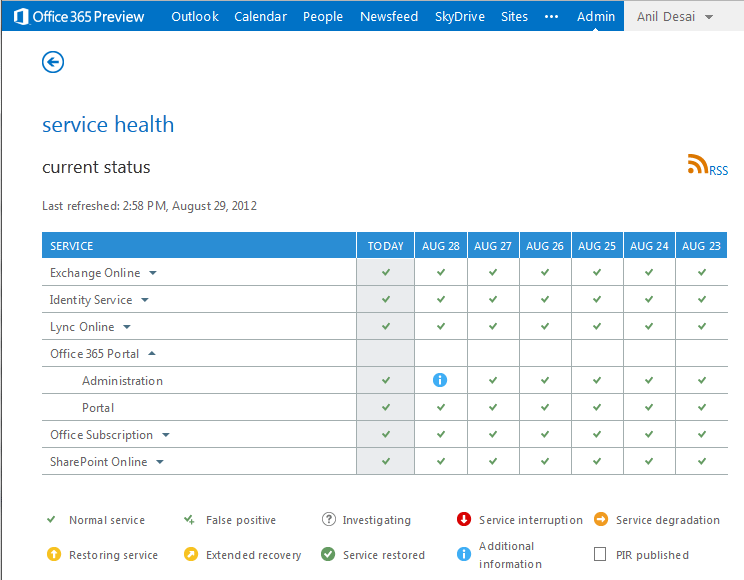
Real-Time Status Information: Perhaps one of the most aggravating aspects of working with cloud services is being in the dark about what is going on with the infrastructure. If I have a service failure or outage in my own data center, I typically know what to do: I can collect more information, and I can attempt to isolate the cause of the problem or fail-over to other systems. With cloud infrastructures, my hands are tied. Microsoft Office 365 Preview, in my opinion, is a good step in the right direction (see screenshot below). In this summary view, you can see the last several days worth of issues, along with real-time status. But there’s a catch: Is the information accurate and valid? (In my case, described below, it most certainly isn’t – I and other users have had a serious e-mail outage for over a week now, and it’s not yet reported for the beta service). Another plus: The information icons allow users to see details about an issue. The information might be limited, but it’s definitely much better than flying completely blind.
Service Level Agreements (SLA’s) with Meaningful Penalties: Downtime, data loss, slowdowns, and other issues can be costly, so it’s really important to get real terms that make providers pay affected users for their infrastructure outages. A simple pro-rated refund is ridiculous in these situations (for example, would you be satisfied with receiving a $300 credit for three hours of downtime during business hours?). Instead, customers should negotiate a minimal per-incident credit amount, along with rapidly-increasingly compensation for downtime or data loss. Personally, I would like to see clauses that state that, if problems can’t be resolved, a provider will pay me to go to their competitors. Cloud providers that trust their infrastructure shouldn’t balk at these terms, so make sure that their pain is at least as much as your pain when failures occur.
Escalation Processes: Especially for knowledgeable IT staff, customers should have the option of forcing an escalation if their issues aren’t being addresses properly. In the case I mention below, my requests were all completely ignored, and I was left with nowhere else to turn (other than, perhaps, to a competing service or back to an on-premises solution). Perhaps larger customers could have called their account reps. or would have some leverage through other avenues (I contacted my Microsoft MVP Lead, who was very helpful). But customers shouldn’t have to go through all of this.
Of course, this list is just a starting point. It’s important for IT departments to get expert legal input when negotiating terms with their cloud service providers. If that makes a potential business partner sweat, it’s much better to find this out early, rather than when your organization is losing huge amounts of time and money after problems occur.
An Case in Point: An Office 365 Preview E-Mail Service Outage
While running the Office 365 Preview, I ran into an issue that seems to have affected numerous users: I was unable to send outbound e-mail. The problem went on for days before I received non-delivery notices. It affected my consulting business (customers didn’t receive important updates on production changes for my clients), and it forced me to scramble to use an account with another provider to continue with my business. Sure, I’m only one person and this is a beta service with limited support, but I think there’s a good lesson to learn here.
I don’t think I need to go into all of the technical details, other than my description of the above problem. After an hour of phone-based troubleshooting, unnecessary configuration changes (including changes to my hosted DNS settings), and at least a dozen e-mails back-and-forth, I was finally able to get Microsoft to recognize the issue. For details, you can see my post titled Outbound Mail Failures: #550 4.4.7 QUEUE.Expired; message expired ##. It took several days for users (myself included) to notice that messages were not being delivered. However, numerous users were reporting errors, and all were asked to perform basic troubleshooting that was completely irrelevant to the problem. Responses often took days and my specific, direct questions went completely ignored. I understand that limited support resources are available, but I needed some actionable advice: If services couldn’t be restored (or Microsoft was unwilling to try), I needed to start changing my DNS records and moving services elsewhere. Support staff should have realized that the problem affected multiple users, that it started at the same time for many of us, that all services were working fine before this time, and that several of the people who posted (myself included) were highly technical. The issue should have been escalated, or (at the very least) been reported as a known issue. That would have reduced some of the uncertainty. Rather, I ended up just waiting… and waiting.
Overall, it took nearly a week after the problem began for Microsoft to start looking into it. Being a cloud-based solution, regardless of my technical knowledge, there was very little troubleshooting I could do myself. The sense of helplessness is difficult enough when dealing with a single e-mail account and support limited to discussion forums. It could be catastrophic when dealing with dozens or hundreds of affected accounts.
In all fairness, the Office 365 program I’m subscribed to is currently free and is in a beta/preview mode. Microsoft was very clear that the service is not currently designed for production use (I knew that going in) and that support resources were limited. It’s not my intention to single out Microsoft (especially for a “Preview” product). I’d like to add that, in many cases, Microsoft’s support levels have been exemplary for real-world, supported production issues I ran across. (Many years ago, I even had Microsoft Product Support Services offer to create a hotfix for a SQL Server issue my company was experiencing!)
On the bright side, most of the people I talked to about this issue were knowledgeable about their infrastructure and had good troubleshooting skills. That’s something that’s often not available to small businesses. I am sure that support for live, production instances would be much more responsive. But, this experience underscores the importance of cloud provider’s technical support processes.
Lesson Learned: Always Have an Alternative
It might sound like common sense, but having fallback systems in place can be complicated, time-consuming, and tedious. However, with the ready availability of so many different online services, it makes sense to have alternatives to choose from in a pinch. In my case, I was able to fall back to using Gmail for outbound messages, and through a setup of automatic forwarding, I was able to remain up and running.
Of course, not all systems are as simple to configure. For example, a CRM backup instance, or a relational database disaster recovery implementation can take a lot of time and effort to setup and manage. Still, as the saying goes, it’s good to hope for the best and plan for the worst.
A Less Cloudy Outlook
Just to be clear, I really believe in the cloud architecture approach, and I think it will continue to have a dramatic impact on how organizations implement IT services. I understand (first-hand, in this case!) why people have their trepidations about trusting other organizations with their infrastructure. But, trust is something that is earned over time, and hopefully by deeds rather than through promises. Overall, I’m excited about the future of hosted applications, platforms, and infrastructure. For now, though, it looks like IT professionals will have to plan and manage with a partly-cloudy outlook on outsourced infrastructure.
All too often, people tend to measure whatever is easiest to measure rather than what matters most. Examples range from health (body weight, nutrition, etc.) to technical fields such as IT.
Easy Answers
When I am attempting to “test’ the bandwidth of a system or network connection, I often find myself using on of the common free online tests like Speedtest.net. It usually runs quickly and requires no configuration. But what do the results really mean? Below is an example of a recent test result.
But what does this really mean in the real world? First off, the automatic server selection process favors the server that is “closest” (from a network architecture standpoint) to me. Generally, the results will give me the best possible speed and path and can be considered a theoretical maximum. But, I rarely connect to resources on my ISP’s core network. Rather, almost everything I do requires routing outside of the ISP’s boundaries. That’s where arrangements like Internet Peering and Content Delivery Networks (CDNs) can make a huge difference. In this case, the easiest answer is clearly not the best one…
Better Answers
What I really want to know is how well I can connect to “real” online applications and services, ranging from Netflix to Office 365. I want my Xbox Live connection to have a low latency, and I want to make sure that performance doesn’t vary dramatically during the day. That’s where more specific tests become important. Many online content and application providers have their own tests. You can often find them by doing a basic web search.
Example: Testing Office 365 Performance
Performance and reliability are among the foremost concerns for most IT professionals that are consider moving some applications and services to the cloud (that is, network infrastructure that they do not completely control). This often introduces numerous variables, but technical (bandwidth, latency, routing, quality of service) and not-so-technical (quality of support personnel, investments in the network, priority of each customer, etc.) Even the best implementations can fail if the end-user experience is poor based on limited bandwidth or high latency.
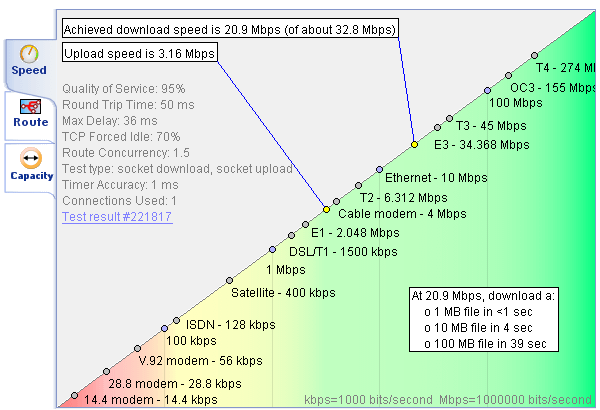
As an example of a more “Real World” (and therefore relevant) test, I want to highlight Microsoft Online Services’ Performance Test. This set of online tests takes into account bandwidth, latency, routing, and related parameters to give you a good idea of how well your experience with Microsoft’s Online services will be (from a performance standpoint, at least). Below is a portion of the “Speed” test result:
This clearly shows that I’m not getting my maximum stated bandwidth (~32Mbps down / 3.0Mbps up), but the performance definitely looks good enough for basic usage.
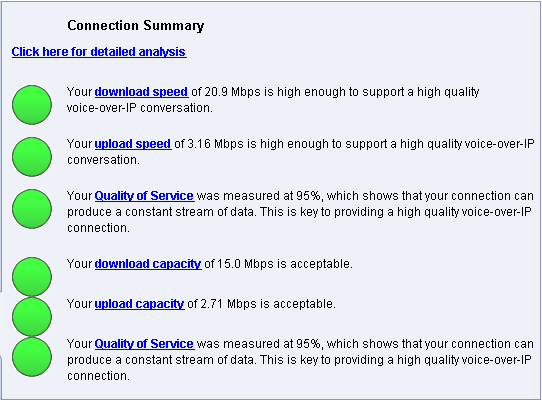
The tests also measure other important statistics, such as packet loss, round-trip time, packets per second, and related characteristics. All of this yielded the following summary:
Of course, performance is likely to vary at different dates and times (I happened to perform this test on a Sunday afternoon). If you want some additional detail on the tests, see the blog post titled Moving your customers to BPOS or Office 365? Check their BANDWIDTH!. And, feel free to try the test yourself if you’re considering moving yourself and/or your users to Microsoft Office Online.
Since the release of the Windows 8 Developer Preview, I had been dabbling with the OS using a variety of virtual machines, desktop computers, and my notebook computer (which I use rarely). I found some of the new features (especially, the under-the-covers architectural ones) to be really exciting, but I had my reservations about the new Metro UI. On one hand, it was just a replacement for the traditional (and aging) Start Menu, so I figured it wouldn’t be a big deal. On the other hand, it didn’t seem to be designed for power users and felt inefficient for “traditional” (mouse and keyboard) users. Overall, though, I realized that I couldn’t give the OS a fair shot unless I replaced my primary OS with it, so I upgraded to the the Windows 8 Release Preview shortly after it was released.
First Things First: The Conclusion
I figured I’d start with the conclusion of my experience with the Windows 8 Release Preview: After a little over a week (and ~80 hours) of using the OS, I ended up rolling back my primary desktop computer to Windows 7. That’s the first time I’ve ever resorted to performing a full restore from backup (along with the pain of making sure my applications, source control, development tools, games, Media Center, and data remained current). And this is from someone who primarily ran the Windows Vista betas for years (for more information, see my post My Struggles with Windows Vista). It’s not that Windows 8 was horrible (it wasn’t), but I just couldn’t justify the new features and improvements against the pain points of the changes.
The remainder of this post provides some details about my upgrade, with the hopes that it might help others (and Microsoft) improve their experience.
The Test Environment and The Upgrade Process
The hardware configuration of my primary work computer is fairly recent: A Dell XPS 8300 with a Core i7 (2nd Gen.) CPU, 16GB of RAM, a 128GB SSD (SATA 3) for boot, and about 3.5 TB of usable hard disk storage. The hardware configuration far exceeds any requirements for Windows 8, but I thought I’d mention it. I run a three-monitor setup (two are driven by a rather anemic AMD Radeon 6450, and one is using an eVGA USB-to-HDMI adapter). I have Bitlocker enabled on all of my hard disks. Pretty much everything else is a plain, vanilla configuration.
An Uphill Upgrade Climb
To avoid having to reinstall and reconfigure my many complex applications (I do a lot of .NET and SQL Server work, and also have many VMs configured on this computer), I decided to perform an in-place upgrade from Windows 7 Ultimate Ed. to the Windows 8 Release Preview. Unfortunately, even after removing some programs that were known to be incompatible with Windows 8 (the upgrade Wizard provided good information), the Upgrade process would fail and roll back at a late portion of the process (migrating Registry settings, I believe).
Troubleshooting was not easy – I had to look through many different log files (some of which were huge), and rely on online tribal knowledge to try to figure out the issue. After four failed upgrade attempts (all of which rolled back just fine), I’m not sure what solved the problem. I resorted to unplugging all USB devices, pre-installing the AMD Radeon Windows 8 Drivers, and uninstalling mouse and keyboard drivers. That seemed to work, and I was able to login and continue. Still, the average user would not have been able to do this much troubleshooting. They would either have resorted to a full, clean install or have given up entirely. I do think this experience will improve significantly before the final release of Windows 8, though I haven’t heard much about that.
Opening Windows and Closing Doors: Usability Issues
Now, on the the heart of the issue(s). There’s certainly no shortage of criticism and skepticism related to running Windows 8’s Metro user interface for non-touch-enabled users. I knew that going in, but I ran into many other unexpected issues. Here’s a list of problems that I ran into, in rough order of importance to me:
Disruptive search for files: When performing a very common operation, such as searching for a filename, the process is cumbersome and jarring. I name and organize my files well, and I know exactly what I’m looking for. The Metro-based Start Menu requires me to hit Win-F, it takes over the entire screen, and then 95% of the time just returns me to the desktop to open a file in a “real” application.
Open File Location: There’s no way to quickly and easily open the folder location of a file once it is returned as a search result. This one drove me crazy! It’s a huge regression from previous Windows releases, and made the file search capability essentially useless to me. Instead, I’d end up opening Windows Explorer (Win-E), clicking on my C: drive, and then using the search dialog there. It was tedious, but at least it worked.
Searching in Apps: (or, Two Clicks is a Charm?): Metro apps use a universal search U, and this wasn’t at all easy for me to discover. For example, the context-sensitive menu’s in apps like Maps and the Microsoft Store didn’t provide a way to search (perhaps the first and most common operation anyone would want to perform). Additionally, the UI itself didn’t have a search box. At first, I thought Microsoft did this to disguise the number of apps in the Store. Later, I learned that I needed to hit Win-C (to open the Charms bar) and then click or use cursor keys to select Search. Even after I understood this, though, it was far too much effort: I’d appreciate another shortcut key to quickly access Search (and, no, Win-F, Win-Q, and Win-C don’t cut it).
Unable to pin files: I pin my top 5- 10 most commonly-used files and shortcuts to the Start Menu in Windows 7. For example, as a consultant, I keep a timesheet for clients in Microsoft Excel. I launch this spreadsheet 5 – 10 times per day. In Windows 8, my closest option was to add Excel as a permanent fixture on my taskbar and pin the relevant file(s) to its context menu. It works, but it’s not nearly as easy as in Windows 7 (and it completely avoids new Windows 8 features).
Windows Media Center (WMC) Issues: I have been using WMC for years, and primarily use it to stream video and music to my Xbox 360. It has been working great over the years. I’m no newbie when it comes to dealing with codecs and the complexities of converting between video types, but no matter what I did, I couldn’t get WMC to stream anything other than WMV files. MPG, MKV / x264 files all played fine locally in WMP and in WMC, but not on the Xbox 360. I eventually gave up on getting this working (that’s not something I do very often).
File system ownership/permissions issues: I’m not sure if this problem was due to the use of a Windows Live ID or changes to the SIDs after the upgrade process, but I lost the ability to access many of my most important folders. I had to manually take ownership or them or reset permissions. Still, many application data folders still had problems that taking ownership wouldn’t resolve. I disabled UAC entirely and had the same experience. In the end, no amount of permissions changes seemed to help resolve problems with numerous apps, so I gave up.
Lack of backup support: In an ideal world, there would be no need to backup an OS and applications. Everything should be restore easily, as long as you have a good copy of your system and user state information. Sadly, we don’t live in a world like that, and installing and configuring applications is a major chore (especially for developer- and IT-types like me). Windows 8 includes a File History feature, but you really have to trick the system to find a true backup utility. I restored to using a third-party backup solution, just to get a full image of my OS hard drive. That’s a big step backward, in my opinion.
No Training/Transition: In the Release preview, users who have not experienced the Metro UI are thrown-in the the new user interface to learn it on their own. While Microsoft has promised some basic training and guidance in the final release, it really better be good to help ease the learning curve.
The Two Faces of Control Panel: Having two different Control Panel applications was confusing and annoying. Even after spending days working with basic settings, I often resorted to a search, ended up in a Metro settings page, and then had to go to the standard Control Panel to really make the changes I wanted. It’s too painful, and doesn’t provide much of a benefit (at least for the standard desktop power user).
Task Switching: Over the last five or so years, I found that I rarely use the Alt-Tab or Win-Tab task switching shortcuts. The primary reason is that, when using multiple monitors, even if I change the focus with a shortcut, I still need a good way to see which window is active. Additionally, when using multiple windows at the same time, the order of apps in the task-switching list
Lack of Metro Apps: Perhaps it’s inevitable at this stage of the pre-release cycle, but there were many applications I would have liked to see (especially which I compare the options to those available on my Android tablet). That will change over time, but for now, I didn’t have a compelling reason to put up with the changes.
It’s Not All Bad: Benefits of Windows 8
I really liked many of the many features in the Windows 8 Release Preview. I’ll probably be talking about them more on this blog, but for now, here’s a brief list of highlights:
Client-Side Hyper-V: Having Microsoft’s virtualization platform built-in to the client OS was great. I was able to migrate virtual machines while they remained running and move VMs between my Windows Server 2012 instance and the local machine. I’m not sure how useful this will be for “average” users, but I loved it.
File Copying Improvements: The new file copying UI was attractive and information. I like the ability to re-prioritize operations and to pause them (I used both options many times). In addition, Windows 8 supports the SMB 3.0 protocol, which provides huge improvements in performance and reliability when connected to compatible servers (like Windows Server 2012).
The Metro UI/Apps: Yes, I’m listing it as a positive thing, overall. The ability to install and run trusted applications from the Microsoft Store and the usability of many of those applications was excellent. If this experience could be better integrated with the OS (and for co-existence with the overwhelming majority of “real” applications), I think it would be even better.
Taskbar Improvements: The ability to specify which icons are shown on which taskbars in a multi-monitor setup were useful (though they did take up additional vertical screen space).
General Performance: Windows 8’s startup, shutdown, and sleep speeds really did seem to be improved. I tend to reboot rarely (often once a week or so), so the savings of a few seconds a month didn’t amount to a huge difference.
Conclusion: A New Hope?
Obviously, many of the issues I encountered could be fixed quite easily by Microsoft (or through third-party hacks and tools). They’re not major architectural problems, and there’s still some time for change before the final release. However, the fact that these problems haven’t been resolved in what’s being called a “Release Preview” is worrisome to me. It also seems to reinforce the criticism that mouse/keyboard users (especially power users) seem to be treated as a secondary concern.
So, what’s my plan for moving to (or away from) Windows 8 when it’s released? I’m still not quite sure. I will certainly do a lot more testing (using either boot from VHD or installing to an alternate partition) when Windows 8 is released. As for replacing Windows 7 on my primary computer, I’ll have to re-weight the pros and cons listed in this post. Either way, though, I’ll write more about my experience here.
The Windows 8 Release Preview is now available to anyone’s who is itching to try out the latest (and last) publicly-available build before the final release of the products. Consumer-types can Download the Windows 8 Release Preview from Microsoft.com. The bits have also been posted to Microsoft TechNet and Microsoft Developer Network (MSDN). For now, my downloads seem to be going pretty quickly.
As the products are getting close to release, I’ll plan to post some tips and info to this blog over the next few weeks and months. Feel free to comment if there’s anything you’re particularly interested in reading about. I might have posted this a little sooner, but all of my bandwidth is currently allocated to download the installation media and VMs.
Evaluating and learning about complex server-side software can be quite a challenge for the busy IT pro. Often, you’re just trying to work with a feature or two for evaluation purposes, but you find yourself spending significant time just trying to setup the pre-requisites for the environment. Add in hassles related to licensing, and it can so much effort that many of us don’t end up taking the time.
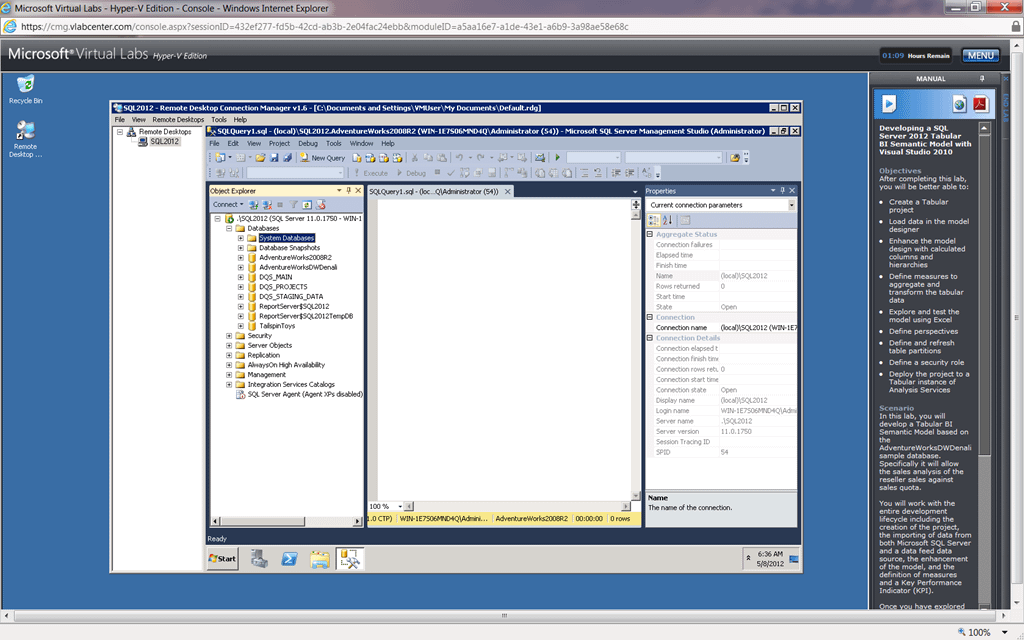
While the widespread adoption of virtualization has made the process of provisioning a test environment and installing software simpler, free, online Microsoft Virtual Labs make the process even easier. Basically, all that’s required is a web browser on the client side. When you choose to launch a Virtual Lab, a server cloud will spin up a new VM, create a browser-based RDP connection, and will include all the necessary software. To make the process even simpler, you’ll see a sidebar that includes downloadable, step-by-step evaluation details and guides. The following screenshot shows an example of a SQL Server MSDN Virtual Lab that I spun up to learn more about configuring the new PowerView feature.
TechNet Virtual Labs
Microsoft TechNet Virtual Labs are focused on providing IT professionals (such as systems administrators and data center administrators) with pre-built evaluation environments that showcase various features and technology. At the time of this writing, there are numerous labs focused on Windows Server 2008 R2 features, the System Center suite of products, Forefront, and (my personal favorite) Private Cloud guides.
MSDN Virtual Labs
Architects and developers haven’t been left out either: MSDN Virtual Labs include a long list of software development-focused labs, including ones for Visual Studio, Office Applications, SQL Server 2012, SharePoint, Team Foundation Server, Windows Azure, and many more related technologies.
A Few Tips
Using an RDP session (especially, a browser-initiated) one isn’t exactly like having software installed on your own computer. However, it’s a reasonable trade-off for most of us that want to quickly try out or learn about some new feature. Here are some additional tips that can help make the experience more user-friendly:
Limitations: While it might be tempting to cause havoc on the hosted VMs, most are locked down to prevent such shenanigans. Operations like changing IP addresses or machine names are restricted, so it’s best to “stick to the script”.
RDP Window Resizing: In at least some Virtual Labs, you’ll need to connect to multiple VMs through a secondary RDP connection. The default resolution and size for this window is quite small. To get a bigger viewable area, first resize the Remote Desktop Connection Manager window, and then connect (or disconnect and reconnect to the VM). This way, you should be able to get close to the 1024 x 768 resolution that many applications require.
Keyboard Shortcuts: Those of us that rely on keyboard shortcuts for simpler and quicker navigation and administration will often need to resort to the mouse to perform certain commands. Examples include the use of the Windows key (which will execute locally) and task switching.
Screen and Input Lag: I have a solid, fast Internet connection, but I experienced a significant amount of screen lag when connecting to several Virtual Labs. Perhaps this is unavoidable, but to make the best of it, use the extra time to review the available documentation (or rejoice in the time you saved from having to setup the entire environment yourself). 🙂
Time Limits: Virtual sessions have time limits (90 minutes for all of the labs I worked with), so it’s a good idea to set aside some uninterrupted time to finish the lab in one shot. Of course, you can always revisit the same lab later, though you’ll lose your “progress” and will likely need to repeat steps in the evaluation guides.
Software Versions: I noticed that in some labs, earlier versions of server applications were installed (for example, SQL Server 2012 RC0 in the screenshot above). It takes significant effort to update software and the related lab instructions, so that’s definitely understandable. I didn’t find any major issues in the labs that I tried out, but it is something to keep in mind.
Using RSS to keep up with new Virtual Labs: The list of Virtual Labs appears to be growing quickly. Both the MSDN and TechNet Virtual Lab sites have RSS feeds that can provide you with a quick and easy way to learn about new labs as they become available.
OK, perhaps it doesn’t get much geekier than decorating your office with large, complicated posters of technical knowledge. But I’ve always been a fan of Microsoft’s Component Architecture Posters (though I rarely have the opportunity to actually print and display them). These posters are designed to convey an large volume of information in a way that is easy for readers/viewers to consume and understand. They’re somewhat like the “infographics” many sites and publishers use to convey information in an easier-to-consume way.
To download your copy of the posted in PDF format, just visit the Microsoft Download Center page: Windows Server “8” Beta Hyper-V Component Architecture Poster (published March 2012). The screenshot is a very small screenshot of just one tiny portion of the overall poster. Just a couple of notes on terminology changes:
Windows Server “8” Beta is now officially named Windows Server 2012
SMB 2.2 is now officially known as SMB 3.0
All information is current as of the “beta” version, and some relatively minor details (like VM CPU and memory limits) might change prior to the official release.
Thanks to John Howard’s post on the Windows Virtualization Team Blog for the information. I think we can look forward to an updated poster sometime prior to or soon after the general availability of Windows Server 2012. I’ll update this post if/when that happens.
Migrating to a new operating system can be tricky, with some special “gotchas” for various applications. While Microsoft has done a great job in minimizing driver changes that can impact application and hardware compatibility, there are always some exceptions. One particularly problematic piece of software for me has always been Cisco’s AnyConnect VPN client. I rely on it for connecting to my clients’ networks and, for the most part, it works well on Windows 7.
The Problem
While testing the Windows 8 Consumer Preview, though, I ran into some problems. While the standard x64 installer for the client seemed to work properly, the client would automatically disconnect after authenticating with the VPN server. I’d receive the following error message:
Secure VPN Connection terminated locally by the Client.
Reason 442: failed to enable Virtual Adapter
The Solution
Thanks to some really helpful posts online (references below), I found that the solution was to make a minor change to the Registry. First, using RegEdit, find the following Registry path:
You should see a key called “DisplayName”. Simply change its value by removing the unnecessary characters at the beginning of the name. In my case, I was left with “Cisco Systems VPN Adapter for 64-bit Windows”, and everything worked fine when I tried to connect again. It’s a strange bug (and one that I wish was better documented), but I have been up and running after this change on three different computers.
If you’re unfamiliar with editing the Registry (and the inherent dangers therein), the below links will provide more details).
Update for Windows 8 Release Preview:
The above Registry path on my most recent installation seems to have changed; on my primary computer, the correct path is:
Fortunately, the DisplayName key change worked fine for me.
Other Options
The Cisco AnyConnect VPN client seems to be aging, and support is difficult to come by unless you have a Cisco support account. Fortunately, there are other third-party commercial and freeware alternatives. It has been a while since I’ve used any of them, but one that I see mentioned often is the VPN Client for Windows from Shrew.net. Feel free to post a comment if you’ve had any experiences (good or bad) with VPN alternatives.
One of the most annoying Windows desktop-related issues I have run across over the past several years is related to Power Management. I routinely use sleep mode (with hibernate on my mobile computers), and rarely reboot my computers. In fact, on my primary computer (which sees a lot of virtualization and development-related action), I tend to reboot the computer weekly, or even less often. However, power management has not always worked as well as I would have liked. It seems that there are always applications and device drivers that want to interrupt what you do.
The Problem
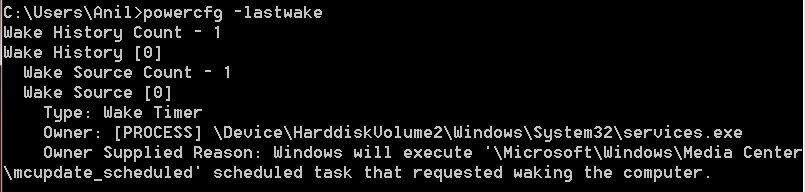
One such offender was Microsoft’s own Windows Media Center in Windows 7. While I didn’t know it at first, after deploying Windows 7 to my new workstation, my computer was automatically waking up each morning before I did (and I usually wake up pretty early). I tracked down the issue by running the “powercfg –lastwake” command. While it doesn’t always provide the most useful information, below is the result I received:
C: \Users\Anil>powercfg -lastwake Wake History Count – 1 Wake History [O] Wake Source Count – 1 Wake Source [O] Type: Wake Timer Owner: [PROCESS] \Device\HarddiskUolume2\Windows\System32\services .exe Owner Supplied Reason: Windows will execute \Microsoft\Windows\Media Center \mcupdatescheduled scheduled task that requested waking the computer.
The Solution
Disabling “wake timers” in my power configuration profile didn’t seem to help. This pointed me to the “Scheduled Tasks” feature, where I was able to drill down to the source task. I unchecked the option to allow this task to automatically wake the computer, and all went well – no more automatic power-on signals at ~3:00am. Of course, the same approach could be used to troubleshoot other wake-related issues.
Knowledge of Power
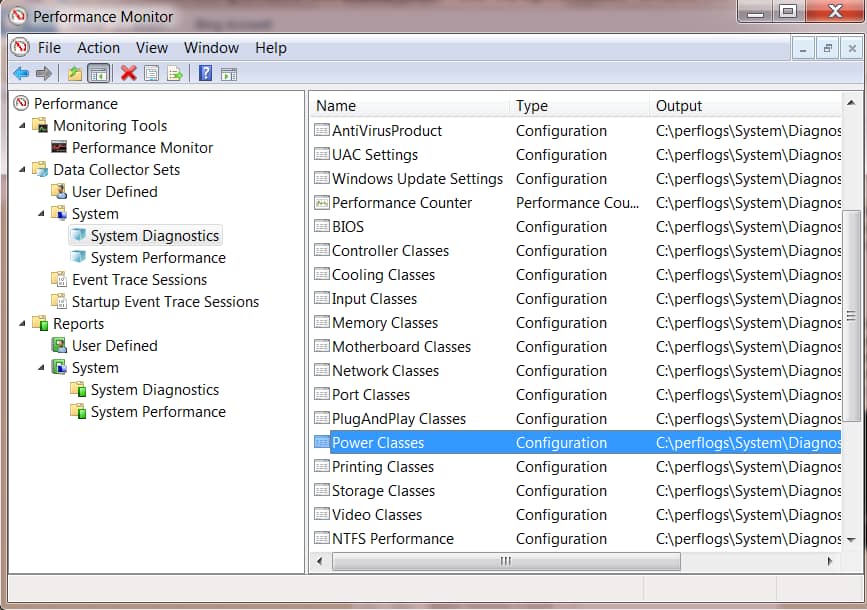
While it’s not always easy to find, Windows OS’s contain a wealth of monitoring information and reports that can help track down various issues. One example is the built-in “System Diagnostics” report that can give you some insight into how your computer is managing power.
Other Issues
Unfortunately, I have still run into other power management-related issues, and nothing I have done has seemed to help. For example, on two different Windows 7 installations, I have had an issue where the monitors would automatically come out of power-saving mode. I regularly use three monitors, and want them to go into a low-power mode when I log off the computer. The monitors power off correctly, but they seem to wake at random times, even when no mouse, keyboard, or other devices are connected (or allowed to wake the computer). I’ve tested everything from potential Wake-on-LAN issues to installing and reinstalling software to no avail. I suspect that the issue might be a USB-to-DVI adapter that I have used on both computers, but I do need to use that (and unplugging it and uninstalling the drivers didn’t seem to help). If anyone has any suggestions, I’d be happy to try them!
While I can’t say that I’m overly partial to any one search engine, I tend to use Bing more often than I use Google. I like the overall format of the results more, and I especially like seeing the daily images on the home page. I wasn’t aware that I could get something similar for my desktop, as well (and without installing Bing Desktop or anything else that tends to want to take over your browser and OS).
As part of it’s Windows 7 Themes page, Microsoft provides a section called “RSS dynamic themes” (it’s cleverly hidden in the list on the left). Unlike other (non-dynamic) themes, the actual download is just a small file that allows Windows 7 machines to download images using RSS. It may take a few minutes for your first images to appear, but after that everything seems to work properly. For example, I can right-click on the desktop and choose “Next desktop background” if I want to move on to something else. Overall, it’s free and seems to work well (even in the Windows 8 Consumer Preview’s Desktop mode).
Of course, there’s also a huge list of collections of other desktop wallpaper options if the dynamic ones don’t work well for you. Perhaps when it comes to “interior decorating” for desktop machines, it’s the little things that matter.
I’m honored to again have received the Microsoft Most Valuable Professional (MVP) Award for the area of Windows Server – Virtualization! Among the many benefits of the award is the opportunity to interact with virtualization-related experts online and at various conferences. While I missed the opportunity to attend the MVP Summit this year, I have been trying to keep up with writing, speaking, and other opportunities, as they come up. I’ll try to keep the details on this blog current.
Thanks to my MVP Lead, Michelle Campbell, and to everyone at the Microsoft MVP program!

 Part of the migration process for me was making sure that, after everything was transferred successfully, that I’d be able to create a full backup of my Gmail content. It’s not that I’m worried about Gmail going away anytime in the foreseeable future. While I had the vast majority of this content organized in Outlook, I periodically deleted attachments from my messages. And, there’s always the chance that I accidentally deleted something important. My Gmail account isn’t going away, and I can always search for content through the web interface. However, I like the convenience and usability of having an indexed .PST file and raw messages if I ever needed them while offline.