Archive for October, 2006

Optimizing Microsoft Virtual Server, Part 6: Optimizing Network Performance

This article was first published on SearchServerVirtualization.TechTarget.com.

It’s rare these days to encounter computers or applications that don’t in some way rely on a network connection. General networking principals apply to virtual machines just as they apply to physical ones. But, since the host’s network adapters will be providing resources for all VMs, there are some special considerations, as well. In this article, I’ll present some ways in which you can design networks with virtualization performance in mind.

Note: For an introduction to working with Virtual Server’s networking options, see Configuring Virtual Networks in Virtual Server – Microsoft Virtual Server from the Ground Up.

Managing Host Network Adapters

When multiple VMs perform network-intensive operations, the host’s network adapter can become a bottleneck. In the simplest network configuration, a Virtual Server host computer will have only physical network port. While this system will allow you to share the network adapter with VMs, you can add some security and manageability by adding a second network port. Figure 1 shows an example. Since it’s a good idea to isolate network traffic (for security and performance reasons), you can choose to place all VMs on a separate Virtual LAN (VLAN) on your switch.

image

Figure 1: Using multiple host network adapters.

Since Virtual Server allows you to connect up to four virtual NICs per VM, you can add additional physical network connections, as needed.

Using the Virtual DHCP Server

Virtual Server’s built-in DHCP Server can be enabled for virtual networks and can help you create logically-separate networks on the same physical network segments. Through the use of differing IP address ranges, this technique can help segregate network traffic without requiring the configuration of VLANs or other devices on your switches. Figure 2 shows an example of a potential configuration.

image

Figure 2: Using DHCP to logically isolate network traffic.

Using NIC Teaming

The concept of NIC teaming is to allow multiple network ports to act as one logical unit. There are two main goals. The first is automatic fail-over. If one of the connections becomes unavailable (due to a port or switch failure), the other port can seamlessly take over the load. The other goal is performance: Having multiple ports working together in a group can increase effective bandwidth. Keep in mind that some configurations will depend on support from the network infrastructure-side (for example, port grouping options on switches).

Other network adapter optimizations include changing the default TCP packet size. If you’ll be routinely transferring large files (such as VHDs) between servers, using Jumbo Frames can greatly reduce overhead and increase performance.

Virtual Server and Firewalls

It usually goes without saying that firewalls and port-level filters provide an important layer of defense for Virtual Server hosts and VMs. Theoretically, if an unauthorized user gained access to your Virtual Server host, she could gain access to the VMs themselves. If you want to place a firewall between Virtual Server and potential users, you’ll need to keep in mind which ports you might need to open to make various services available (see Figure 3).

image

Figure 3: TCP Ports used by various Virtual Server-related services

Monitoring Network-Related Performance

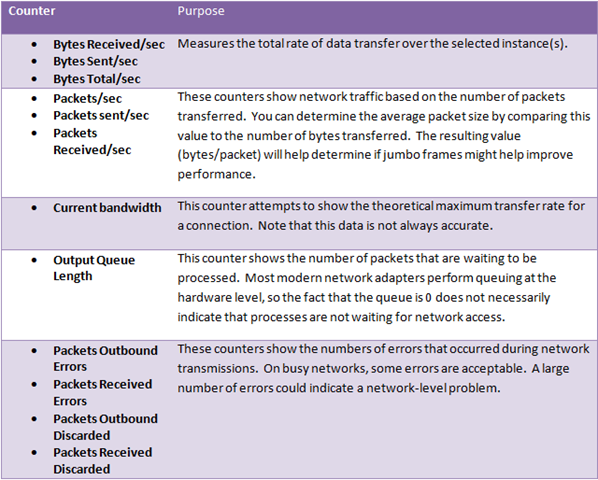
When planning for virtualization network configurations, it can be useful to get statistics about traffic traversing the host and guest interfaces. Figure 4 provides an example of statistics that can be collecting using Windows System Monitor. When measured at the host level, you can get an aggregate summary of how much bandwidth is being used and if there’s an outbound queue. To drill-down on the source of the network information, each guest OS can be monitored. You can further filter the details per network adapter.
image

Figure 4: Network performance counters of the “Network Interface” object

Summary

There are many different ways in which you can configure networks to better support virtual machines. We looked at methods for segmenting traffic, increasing throughput, configuring firewalls, and monitoring network statistics. All of this can help optimize network performance in virtualized environments of any size.

Optimizing Microsoft Virtual Server, Part 5: Using Network-Based Storage

This article was first published on SearchServerVirtualization.TechTarget.com.

Providing and managing storage resources in any IT environment can quickly grow out of control. When you’re using local storage, you often run into limitations based on the number of hard disks that can physically be attached to a single computer. Multiply these requirements by dozens or hundreds of servers, and it quickly becomes unmanageable. Fortunately, there’s a potential solution in centralized, network-based storage. In this article, we’ll look at how you can use network-based storage options to improve the performance and manageability of virtual machines running on Microsoft Virtual Server.

Effects of Network-Based Storage

Using network-based storage can have several effects on overall performance: some are good, some are (potentially) bad. Let’s start with the positive: Disk and network caching that is common on many storage solutions can help increase overall performance. When using centralized storage, even relatively small solutions might have multiple gigabytes of high-speed memory cache. Anytime you can avoid physical disk access is a win from a performance standpoint. Additionally, when using centralized storage, you can take advantage of advanced backup and recovery features such as snapshots and split-mirror features (the terminology and technology vary by vendor).

There are some down-sides to network-based storage. First and foremost is latency: performing round trips across a network can be time-consuming and long delays could lead to VM crashes. Also, the added burden on the network when multiple VMs are trying to use resources can require infrastructure upgrades. Overall, the benefits can outweigh the risks and difficulties (as long as you plan and test properly). With this in mind, let’s look at some technical approaches.

Sharing Virtual Hard Disks (VHDs)

The fact that VHDs are actually files comes with an unexpected benefit: Multiple VMs can access the same VHD files concurrently, as long as the VHD files are read-only. This is a great option if you’re already planning to use undo disks and/or differencing disks since the base or parent VHDs will be read-only, anyway. While you might increase contention and generate “hot spots” on the host file system, when sharing files with many VMs, these effects can be offset by caching. Only performance testing can provide the real numbers, but sharing meets your needs, you’ll have the added benefit of minimizing physical disk space usage.

Using Network-Attached Storage (NAS)

NAS devices provide access to files over a network connection. Standard Windows file shares are the most common example. While NAS devices can support several different protocols, in the Windows world, the CIFS standard is most common. Microsoft’s implementation (SMB) is the protocol that allows Windows users to access file shares. A simple approach involves configuring one or more virtual machines to access a virtual hard disk over the network using a UNC path instead of a local path. Figure 1 provides an example.

image

Figure 1: Accessing a VHD over the network

In order to implement this configuration, the Virtual Server service account must have access to the remote network location, and proper permissions must be set. Whenever a guest OS makes a disk I/O request, Virtual Server sends the request over the network to the VHD file located on the file share.

Using a Storage Area Network (SAN)

SAN technology is based on low-latency, high-performance Fibre Channel networks. The idea is to centralize storage while providing the highest levels of disk compatibility and performance. The major difference between SAN and NAS devices is that SANs use block-level I/OThis means that, to the host operating system, SAN-based storage is indistinguishable from local storage. You can perform operations such as formatting and defragmenting a SAN-attached volume. In contrast, with NAS-based access, you’re limited to file-level operations.

The major drawbacks related to SANs are cost (Fibre Channel host bus adapters and switch ports can be very expensive) and management. Generally, a pool of storage must be carved into smaller slices, each of which is dedicated to a server. This can often lead to wasted disk space (although many vendors have introduced methods for more dynamically managing allocation). Figure 2 shows a high-level logical view of a typical SAN implementation.

image

Figure 2: A basic Storage Area Network (SAN) environment

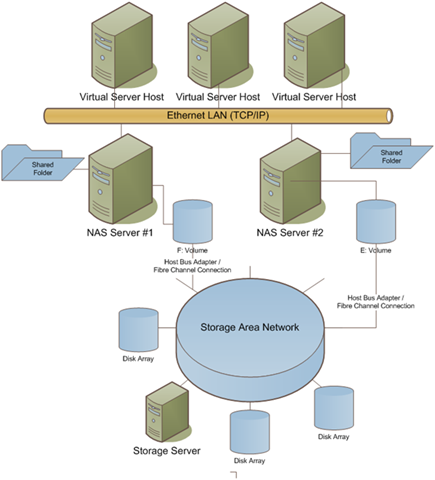
In order to improve management and reduce costs, configurations that combine SAN and NAS technologies are common in many environments. The Virtual Server computers can access VHD files using the NAS devices and the NAS devices, in turn, will connect to the SAN. This method can help reduce costs (by limiting the number of Fibre Channel ports and connections required) and simplify administration. Figure 3 provides an example of this type of configuration.

image

Figure 3: Combining NAS and SAN devices to store VHD files.

Using iSCSI

The iSCSI standard was designed to provide the storage characteristics of SCSI connections over an Ethernet network. iSCSI clients and servers (called initiators and targets, respectively) are readily available from many different vendors. As with SAN technology, iSCSI provides for block-level disk access. The major benefit of iSCSI is that it can work over an organization’s existing investment in copper-based Ethernet (which is dramatically cheaper than Fibre Channel solutions). Some benchmarks have shown that iSCSI can offer performance similar to Fibre Channel solutions. On the initiator side, iSCSI can be implemented as a software-based solution, or can take advantage of dedicated accelerator cards.

Comparing Network Storage Options

The bottom line for organizations that are trying to manage storage-hungry VMs is that there are several options available for centralizing storage. One major caveat is that you should verify support policies with vendors. Unsupported configurations may work, but you’ll be running without a safety net. And, I can’t overstate enough the importance of testing network-based storage configurations. Issues such as latency and protocol implementation nuances can lead to downtime and data loss. Overall, however, storing VHDs on network-based storage makes a lot of sense and can help reduce some major virtualization headaches.

Optimizing Microsoft Virtual Server, Part 4: Maintaining Virtual Hard Disks

This article was first published on SearchServerVirtualization.TechTarget.com.

IT staff and end-users tend to demand a lot from their hard disk subsystems. We throw thousands of files and move or copy gigabytes of data practically every day. So it probably comes as no surprise that, over time, this can take its toll on overall performance. Just like physical hard disks, virtual hard disk (VHD) files need to be maintained over time. In this article, I’ll present details related to maintaining VHD performance on Virtual Server host computers.

Note: For an introduction to working with Virtual Server’s disk architecture, see Understanding Virtual Hard Disk Options.

Monitoring Disk Performance

Since disk-related throughput and latency often affect overall VM performance, it’s important to monitor disk activity to see if you’re at or near the capacity of your exiting storage system. Figure 1 provides a list of useful System Monitor counters that provide statistics for determine whether disk performance is a bottleneck.

image

Figure 1: Disk-related performance counters

When monitoring disk activity at the host level, you’ll get an aggregate view of activity generated by the host and all VMs combined. These statistics are helpful for determining if a hardware upgrade or rearrangement of files is necessary. By viewing statistics at the level of each VM, you can determine which guest OS’s are generating the most disk activity. All of these details can help clue you in on how the disk subsystem is being used.

Defragmentation

Virtual hard disks are just as susceptible to fragmentation as are physical hard disks. The bad news is that you’ll need to worry about disk fragmentation at two levels: the host-level and within each guest OS. The frequency of running defragmenting operations will vary based on the amount and type of activity within the VMs.

As a general rule, you should use the same schedule that you would use for physical machines that are performing similar activities. So, on a busy file server, you might want to defragment frequently. And on a largely static-content web server, you might be able to go months without any performance degradation. The catch is that you need to coordinate defragmentation operations between VMs and the host: Running multiple defrag operations at the same time will significantly decrease performance and will put a much greater load on the physical disk subsystem. It’s a balancing act, but monitoring can help you determine the most appropriate schedule.

Compacting VHDs

Dynamically-expanding virtual hard disks can be compacted to reclaim space that is currently allocated on the host system, but that is not actually used within the guest. This situation can occur if you’ve deleted a lot of data from within the VM, or if files are often moved to and from the VM’s file system. Compacted VHDs are easier to move around (since they’re smaller), and can perform significantly better.

There are two main steps to getting optimal results. The first is to run the Virtual Disk Precompactor – a utility that is available as an ISO file that’s included with the installation of Virtual Server. Just attach the ISO (or access the utility over the network) and run the executable from within the VM. The pre-compactor will reallocate space to ensure that you get the most efficient compact operation.

With the prep work out of the way, you can compact the VHD using the Virtual Server Administration Web Site’s Inspect Virtual Disks function (see Figure 2). In order to compact a disk, it must not be attached to any running VMs. You’ll need roughly twice the total disk space of the size of the VHD, since Virtual Server actually creates a new VHD in the background. The process can generate a lot of disk I/O and can use significant amounts of CPU time, so you’ll want to perform the operation during periods of low activity. Other options are to script the process or to copy the VHDs to a non-production computer and compact them there.

image

Figure 2: Compacting a Virtual Hard Disk

Developing a VM Maintenance Plan

So far, we’ve looked at various ways in which you can improve performance. Now, let’s look at how you can bring this ideas together to maintain performance in a virtualized production environment. A regular virtual machine maintenance plan might include the following steps:

  • Review virtual disk performance statistics and move VHD files, if necessary. (For more information VHD file placement, see the previous article in this series: “Designing Virtual Hard Disk Storage”)
  • Compact all Dynamically-Expanding Virtual Hard Disks
  • Defragment all Guest OS file systems
  • Defragment the Host file system

The frequency of these tasks will vary based on usage patterns for VMs and the amount of downtime available (or, at least, the amount of time during which activity is low). It can be a lot of work, but it’s usually worth the effort. Third-party disk defragmentation tools can also assist with scheduling and centrally managing defragmentation operations.

A Stitch in Time…

The benefits of a flexible virtual hard disk architecture come at the cost of gradual performance decreases over time. In this article, we look at ways for monitoring and maintaining the performance of VHDs to ensure adequate VM performance. Next up in this series is the topic of using network-based storage for your VHDs.

Optimizing Microsoft Virtual Server, Part 3: Designing Virtual Hard Disk Storage

This article was first published on SearchServerVirtualization.TechTarget.com.

Much of the power and flexibility of virtualization solutions comes from the features available for virtual hard disks. Unfortunately, the many different configuration types that are available, you can end up reducing overall performance if you’re not careful. A key concept is virtual hard disk file placement. Let’s look at some scenarios and recommendations that can have a significant impact on performance.

Note: For an introduction to working with Virtual Server’s disk architecture, see Understanding Virtual Hard Disk Options.

VHD File Placement

Most production-class servers will have multiple physical hard disks installed, often to improve performance and to provide redundancy. When planning for allocating VHDs on the host’s file system, the rule is simple: Reduce disk contention. The best approach requires an understanding of how VHD files are used.

If each of your VMs has only one VHD, then you can simply spread them across the available physical spindles based on their expected workload. A common configuration is to use one VHD for the OS and to attach another for data storage. If both VHDs will be busy, placing then on different physical volumes can avoid competition for resources. Other configurations can be significantly more complicated, but the general rule still applies: try to spread disk activity across physical spindles whenever possible.

Managing Undo and Differencing Disks

If you are using undo disks or differencing disks, you’ll want to arrange them such that concurrent I/O is limited. Figure 1 shows an example in which differencing disks are spread across physical disks. In this configuration, the majority of disk read activity is occurring on the parent VHD file, whereas the differencing disk will experience the majority of write activity. Of course, these are only generalizations as the size of the VHDs and the actual patterns of read and write activity can make a huge difference.

image

Figure 1: Arranging parent and child VHD files for performance.

In some cases, using undo disks can improve performance (for example, when the undo disks and base VHDs are on separate physical spindles). In other cases, such as when you have a long chain of differencing disks, you can generate a tremendous amount of disk-related overhead. For some read and write operations, Virtual Server might need to access multiple files to find the “latest” version of the data. And, this problem will get worse over time. Committing undo disks and merging differencing disks with their parent VHDs are important operations that can help restore overall performance.

Fixed-Size vs. Dynamically-Expanding VHDs

The base type for VHDs you create can have a large affect on overall performance. While dynamically-expanding VHDs can make more efficient use of physical disk space on the host, they tend to get fragmented as they grow. Fixed-size VHDs are more efficient since physical disk space is allocated and reserved when they’re created. The general rule is, if you can spare the disk space, go with fixed-size hard disks. Also, keep in mind that you can always convert between fixed-size and dynamically-expanding VHDs, if your needs change.

Host Storage Configuration

The ultimate disk-related performance limits for your VMs will be determined by your choice of host storage hardware. One important decision (especially for lower-end servers) is the type of local storage connection. IDE-based hard disks will offer the poorest performance, whereas SATA, SCSI, and Serial-Attached SCSI (SAS) will offer many improvements. The key to the faster technologies is that they can efficiently carry out multiple concurrent I/O operations (a common scenario when multiple VMs are cranking away on the same server).

When evaluating local storage solutions, there are a couple of key parameters to keep in mind. The first is overall disk throughput (which reflects the total amount of data that can be passed over the connection in a given amount of time). The other important metric is the number of I/O operations per second that can be processed. VM usage patterns often result in a large number of small I/O operations. Just as important is the number of physical hard disks that are available. The more physical disk spindles that are available, the better will be your overall performance.

Using RAID

Various implementations of RAID technology can also make the job of placing VHD files easier. Figure 2 provides a high-level overview of commonly-used RAID levels, and their pros and cons. By utilizing multiple physical spindles in each array, performance can be significantly improved. Since multiple disks are working together at the disk level, the importance of manually moving VHD files to independent disks is reduced. And, of course, you’ll have the added benefit of fault-tolerance.

image

Figure 2: Comparing various RAID levels

Virtual IDE vs. SCSI Controllers

Virtual Server allows you two different methods for connecting virtual hard disks to your VMs: IDE and SCSI. Note that these options are independent of the storage technology you’re using on the host server. The main benefit of IDE is compatibility: Pretty much every x86-compatible operating system supports the IDE standard. You can have up to four IDE connections per VM, and each can have a virtual hard disk or virtual CD/DVD-ROM device attached.

While IDE-based connections work well for many simpler VMs, SCSI connections offer numerous benefits. First, VHDs attached to an IDE channel are limited to 127GB, whereas SCSI-attached VHDs can be up to 2 terabytes in size. Additionally, the virtual SCSI controller can support up to a total of 28 attached VHDs (four SCSI adapters times seven available channels on each)! Figure 3 provides an overview of the number of possible disk configurations.

image

Figure 3: Hard disk connection interface options for VHDs

If that isn’t enough there’s one more advantage: SCSI-attached VHDs often perform better than IDE-attached VHDs, especially when the VM is generating a lot of concurrent I/O operations. Figure 3 shows an overview of the available hard disk connections for a VM.

image

Figure 4: Configuring a SCSI-attached VHD for a VM.

One helpful feature is that, in general, the same VHD file can be attached to either IDE or SCSI controllers without making changes. A major exception to the rule is the generally the boot hard disk, as BIOS and driver changes will likely be required to make that work. Still, the rule for performance is pretty simple: Use SCSI-attached VHDs whenever you can and use IDE-attached VHDs whenever you must.

Summary

When you’re trying to setup a new Virtual Server installation for success, designing and managing VHD storage options is a great first step. Disk I/O bottlenecks are a common cause of real-world performance limitations, but there are several ways to reduce them. In the next article, I’ll talk about maintaining VHDs to preserve performance over time.

Optimizing Microsoft Virtual Server, Part 2: Managing CPU Resource Allocation

This article was first published on SearchServerVirtualization.TechTarget.com.

By default, Virtual Server will treat all VMs with equal priority. In production environments, however, it’s common to have some VMs that are more important than others. Accordingly, you’ll want to let Virtual Server know which VMs should get preference. Virtual Server offers two main methods for managing CPU utilization per VM. To access the settings, click on “Resource Allocation” in the Virtual Server section of the Administration Web Site. Figure 1 provides a view of the default resource allocations for VMs.

image

Figure 1: Configuring CPU settings in the Virtual Server Administration Web Site.

The initial display might seem simple enough, but there’s a lot of potential power here. Let’s look at the two main ways in which you can configure CPU settings.

Weight-Based Resource Allocation

The simplest way to assign priorities to your VMs is to assign “weights” to them. When doling out CPU resources, Virtual Server will give preference to each VM based on its relative weight setting. The values can range from 1 (the lowest priority) to 10,000 (highest priority). By default, all VMs will have a relative weight setting of 100. Since the values are relative, you can setup your own conventions, such as using only values in the range of 1to 10 or 1 to 100. For example, if you want an important VM to have twice the priority of the others, you can set it to a weight of 200 (assuming that the other VMs are using the default weight of 100).

The preferences will kick in whenever CPU resources are limited. Weight-based resource allocation is the quickest and easiest way prioritize your workloads while ensuring that all CPU resources are still available for use.

Constraint-Based Resource Allocation

In some cases, you’ll want more granular control over how CPU resources are managed. That’s where constraint-based resource allocation comes in. This method is a bit more complicated (and you can make CPU resources unavailable if you don’t understand the settings). But, it can be very useful in production environments. You can specify two constraint types as percentages:

  • Reserved Capacity: This setting tells Virtual Server to reserve a certain amount of CPU time for a VM, whether or not it is actually using it. Since it’s difficult to predict when an important VM will need resources, you can use this setting to ensure that one or more VMs will never be left waiting for CPU time. Just keep in mind that you can adversely impact other VMs running on the same machine, since the reserved capacity won’t be available to other VMs.
  • Maximum Capacity: A potential problem when running multiple VMs is that one VM could monopolize CPU time and adversely affect all of the other VMs on the system. The maximum capacity setting specifics an upper limit to the amount of CPU time that a VM may use. Again, keep in mind that there’s a potential for wasted cycles: Even if there are no other VMs competing for resources, the amount of CPU power that can be accessed by the VM will be limited. This option is also helpful if you have other applications or services running on the host system, and you want to ensure that Virtual Server doesn’t dominate the machine.

By default, the reserved capacity is set to 0%, and the maximum capacity at 100% for all VMs. This effectively disables constraint-based resource allocation. Both settings can be defined as either a percentage of one CPU, or a percentage of all CPU resources on the system. The Administration Web Site automatically calculates the amount of resources left to allocate and shows the current CPU utilization per VM. Figure 2 shows an example of configured values.

image

Figure 2: Enabling Constraint-Based Resource Allocation

One other helpful feature: Resource allocation settings can be change dynamically while VMs are running. That can help troubleshoot problems with, for example, a VM that is hanging and trying to use all of the available CPU time.

Controlling Virtualization Mindshare

As you can see, there are several ways in which you can tune Virtual Server’s CPU resource referee. By letting Virtual Server know the relative importance of your VMs, you can help the virtualization layer make better decisions about how to ration resources. OK, that covers managing CPU resources: Next on our hit-list for performance optimization will be managing virtual hard disks.

Optimizing Microsoft Virtual Server, Part 1: Monitoring CPU and Memory Resources

This article was first published on SearchServerVirtualization.TechTarget.com.

The primary purpose of any virtualization solution is to act as a referee between virtual machines (which are always asking for access to hardware resources) and the underlying hardware itself (which can only respond to a limited number of requests at a time). In this article, I’ll cover ways in which you can moanitor CPU and memory resources.

Getting Host Hardware Information

When managing Virtual Server, a good first step is to get an overview of the host computer’s hardware configuration as seen by the Virtual Server service. To do this, just click on Server Properties – Physical Computer Properties (see Figure 1) in the Virtual Server Administration Web Site. Here, you’ll get a quick rundown of the key CPU and memory statistics.

image

Figure 1: Viewing the physical properties of a host computer.

Make a note of the number of physical and logical CPUs as well as the amount of available physical memory. These numbers will define the constraints under which you’ll be working.

Managing Memory Settings

Configuring memory settings for a virtual machine couldn’t be much easier: As long as the VM is powered off, you can change the memory setting in the properties of the VM. There are some rules to keep in mind: Most importantly, you cannot “overcommit” memory – that is, the sum of physical memory allocated to all VMs on a host server (whether or not they’re actually running) must be less than the total amount of physical memory available on the server.

If you’re going to be running other applications on the same server, keep in mind that you’ll need to reserve a certain amount of memory for the host OS, as well. Fortunately, Virtual Server can access all of the physical memory that is available on the host computer, including support for large memory on 32-bit systems and the increased address space of 64-bit host operating systems.

Physical CPU Considerations

When choosing CPUs for a host server machine, there are several things to keep in mind. First and foremost is the overall performance of the CPU architecture. Clock speed and the number of physical CPU cores are most important. Each virtual machine will run in its own thread, so having multiple CPU cores can greatly help improve performance. Additionally, Intel and AMD both offer virtualization-related extensions that can help improve virtualization performance (an upcoming Virtual Server update will add optimizations that take advantage of these specialized instructions).

Next, keep in mind issues related to heat and power consumption (both will end up hitting your overall budget). Multi-core CPUs offer significant performance advantages while minimizing additional power consumption. Keep in mind that, regardless of the number of physical and virtual CPUs present on the host, each VM will be limited to seeing only a single virtual CPU. Rest assured that Virtual Server will use all of the available host CPUs, as needed.

Monitoring CPU and Memory Performance

Before you can start tweaking CPU and memory settings, you should get an idea of how these resources are being used. Figure 2 provides some useful Windows Performance Monitor counters, and how they can clue you in on what’s going on. It can be valuable to measure these values both at the host-level (for an overview of aggregate hardware utilization) and at the VM-level (to hone in on details related to individual VMs’ resource usage).

image

Figure 2: Windows Performance Monitor counters for measuring CPU and memory statistics.

Summary

In this article, we looked at the ways in which Virtual Server automatically manages access to CPU and memory resources, and how you can monitor actual usage. We’ll build on this information in the next article when we look at manually managing CPU resource allocations. Stay tuned!

Optimizing Microsoft Virtual Server: Series Introduction

This article was first published on SearchServerVirtualization.TechTarget.com.

Issues related to performance rank high on the list of technical concerns related to virtualization. Organizations are often ready to jump toward the use of virtual machines, as long as they can be sure that their applications will continue to perform well. While it’s a fact that virtualization overhead is inevitable, it’s more important to understand how to address bottlenecks and increase performance.

In some ways, this sounds like the not-so-good old days, where systems administrators would go to great lengths to squeeze the maximum performance out of 64MB of RAM on a mid-range server. While hardware constraints are nowhere near as tight as they used to be, it’s still up to IT staff to get the highest performance out of their systems. Fortunately, there are many ways to reach this goal.

This series of articles will focus on strategies for optimizing the performance of virtual machines running on Microsoft Virtual Server 2005 R2. While most of the general tips apply to other virtualization platforms (such as VMware and Xen), I’ll focus on Microsoft’s platform when illustrating specifics. I’ll cover methods to optimize CPU, memory, disk, and network performance. The goal is to help you manage and optimize performance based on Virtual Server’s architecture and your business and technical needs.

Note: The articles in this series assume that you’re already familiar with the Virtual Server platform and have experience working with virtual hard disks, virtual networks, and other settings. If you’re new to virtualization, be sure to check out my previous series of articles: “Virtual Server: From the Ground Up”.